Module 5 · Lesson 3 of 6
Workflow Actions Mga Workflow Action
Awaiting hands-on verification. The concepts here are sound, but the click-by-click steps have not yet been re-walked in a live GoHighLevel sub-account. GoHighLevel changes often, so a menu name or screen may differ from what you see. Flagged rather than presented as verified.
Before this: Workflow Triggers
Your knowledge-check score on Workflow Triggers was under 60%. Worth a quick re-read before this one — it builds on it.
On this page

In this lesson
Workflow Actions
Sa lesson na ’to
Mga Workflow Action

Read the transcript
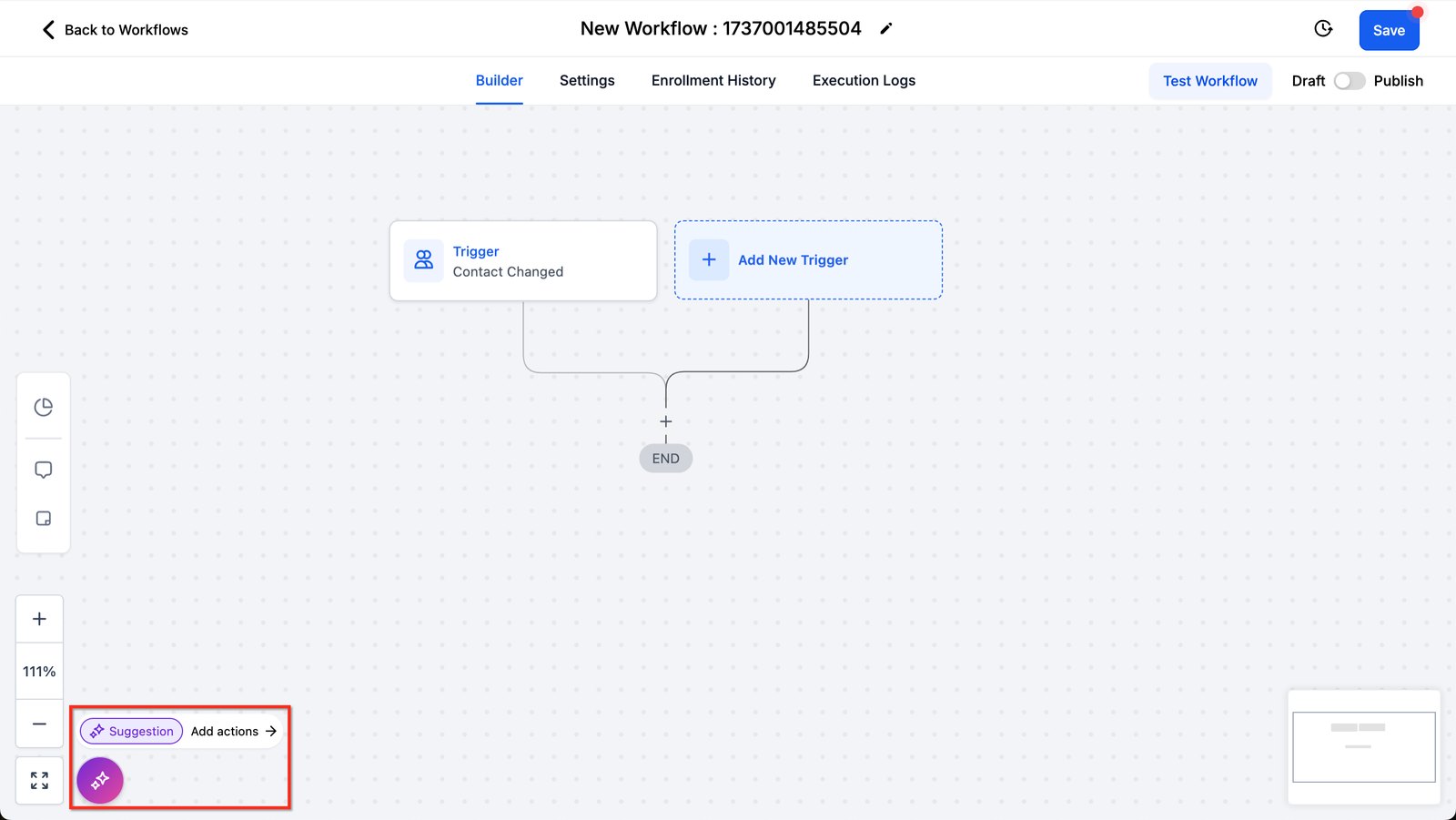
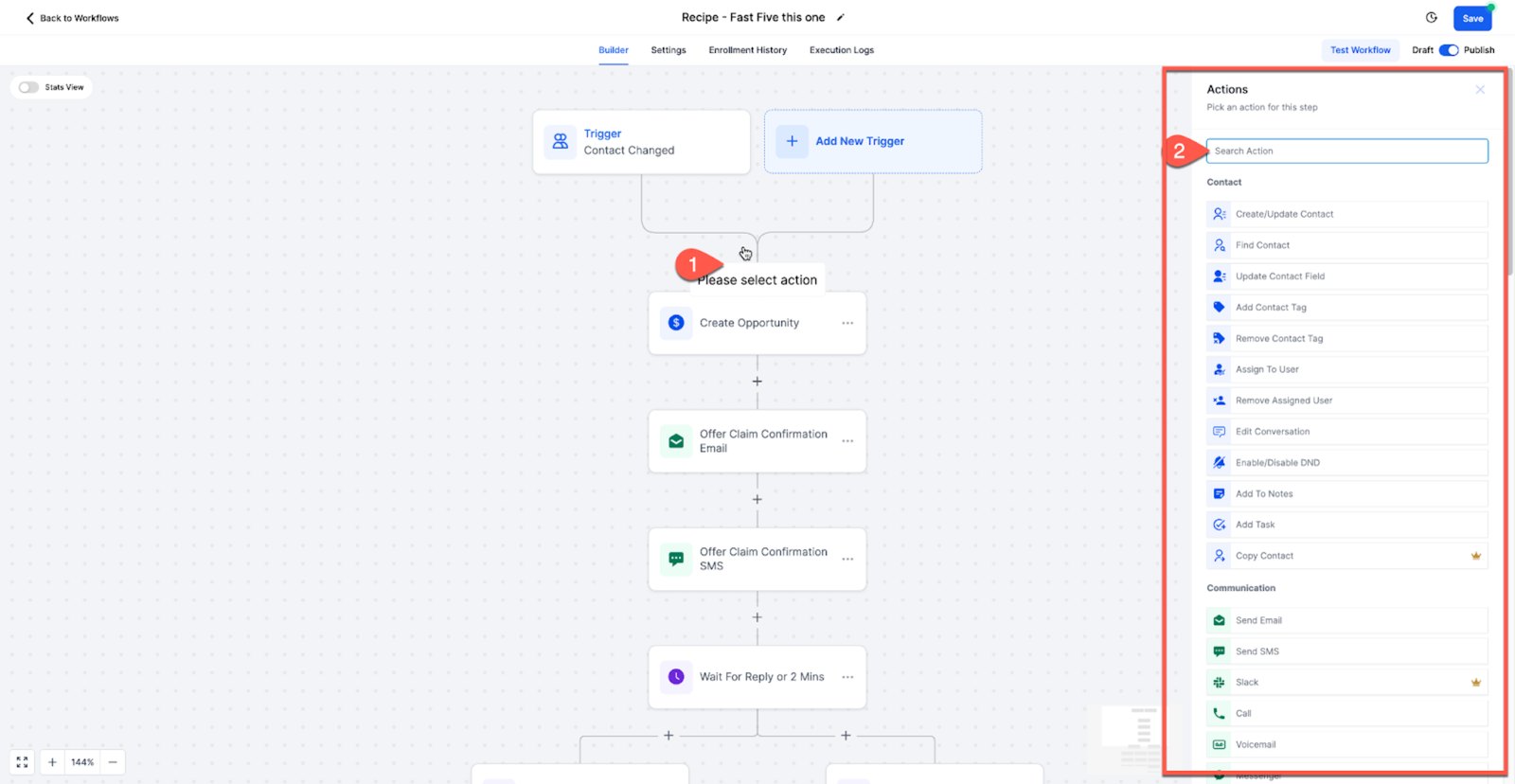
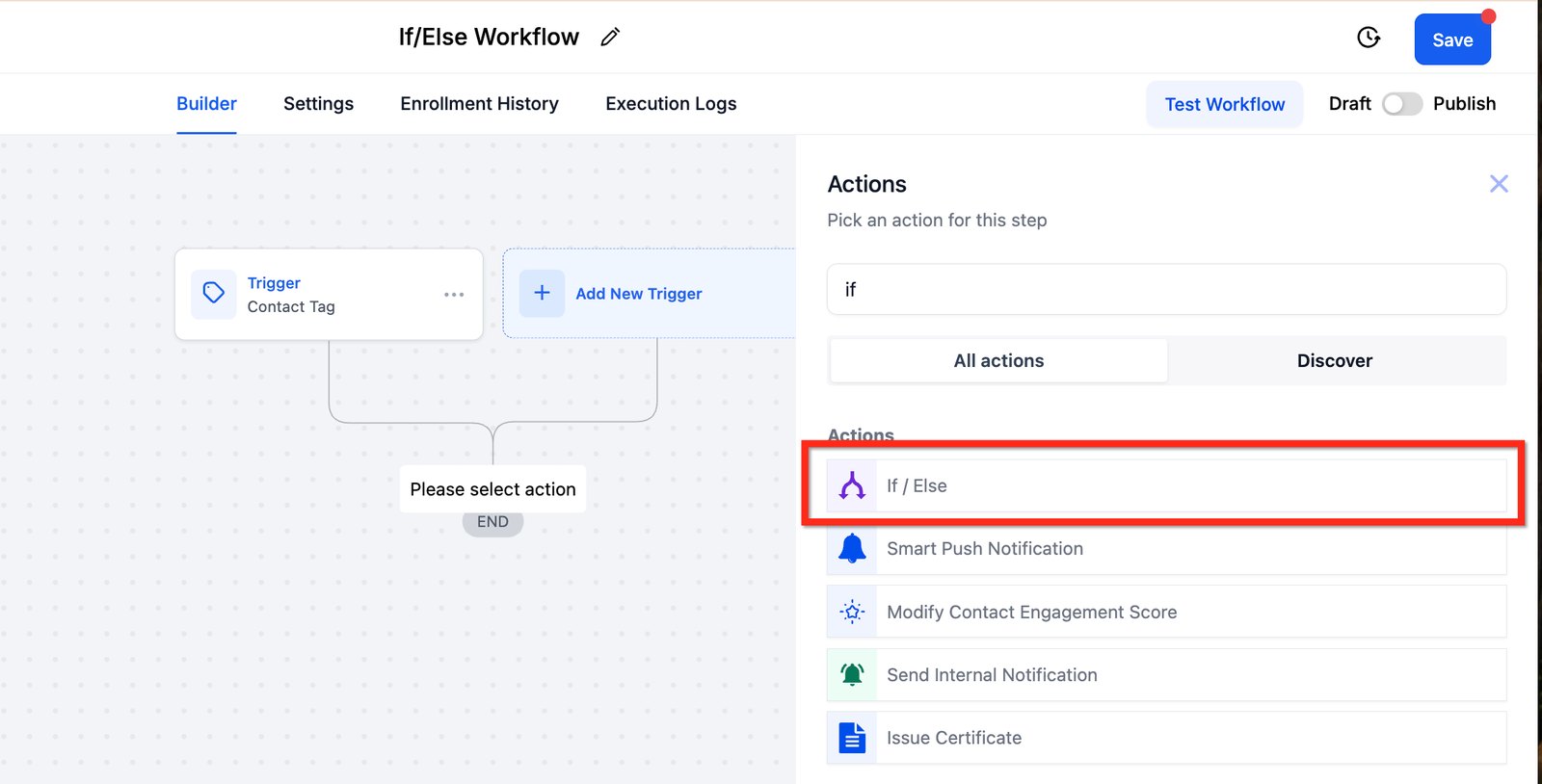
Hi baddie! I'm Hazel. Clients describe outcomes. Actions are how you deliver them. A new workflow starts with a trigger and an empty spot below it. Click the plus under the trigger to add your first action. The Actions list opens. Contact actions like Add Contact Tag are at the top. Communication actions like Send Email and Send SMS are below. Four cover most beginner work: internal notification, create opportunity, add tag and send a message. The list is long. Type in the search box to find an action fast. Here, typing if finds the If / Else action. Underline every verb in the client's request. Each verb needs an action. Read the lesson below, then try the practice.
Hi baddie! Si Hazel 'to. Outcomes ang sinasabi ng client. Actions ang paraan mo para ma-deliver 'yon. Ang bagong workflow, may trigger at bakanteng spot sa ilalim. I-click ang plus sa ilalim ng trigger para i-add ang first action mo. Bubukas ang Actions list. Nasa taas ang contact actions tulad ng Add Contact Tag. Nasa baba ang communication actions tulad ng Send Email at Send SMS. Apat ang gamit sa karamihan ng beginner work: internal notification, create opportunity, add tag at send a message. Mahaba ang list. Mag-type sa search box para mabilis mahanap ang action. Dito, pag tinype ang if, lalabas ang If / Else action. I-underline ang bawat verb sa request ng client. Bawat verb, kailangan ng action. Basahin ang lesson sa baba, tapos subukan ang practice.
What you'll learn
- Choose the right action for what a client actually asked for
- Use the four actions that cover most beginner automations
- Explain why an internal notification belongs in almost every workflow
- Spot when an action needs data that the contact record does not have yet
- Add the first actions to your Nurture workflow: tag, opportunity and the booking email
- Piliin ang tamang action para sa talagang hiningi ng client
- Gamitin ang apat na actions na sumasakop sa karamihan ng beginner automations
- Ipaliwanag kung bakit dapat may internal notification sa halos bawat workflow
- Mapansin kapag kailangan ng action ang data na wala pa sa contact record
- Idagdag ang unang actions sa Nurture workflow mo: tag, opportunity at booking email
New words in this lesson
- Internal notification
- A workflow action that tells someone on the business's team (not the contact) that something happened.
- Merge field
- A placeholder in a message, like {{contact.first_name}}, replaced with the contact's real data when sent. Empty fields send as blanks.
What a client actually asks
"When someone fills in the contact form, I want Maricel to know straight away, and I want it to show up in our pipeline so nothing gets forgotten."
Ang tanong ng client
"Kapag may nagpuno ng contact form, gusto kong malaman agad ni Maricel, at gusto kong lumabas ito sa pipeline namin para walang makalimutan."
Key concepts
A workflow is three things in a row: something happens, you optionally narrow down which cases you care about, and then the workflow does something. That last part is the actions.
The trigger is not the hard part. Most beginners pick a sensible trigger and then stall on the actions, because the action list is long and most of it is irrelevant to what the client asked for.
Here is the thing worth internalizing: the client never asks for an action. They describe an outcome. “I want to know when a lead comes in” is an outcome. Your job is to translate that into the specific things the system has to do — and usually it is more than one.
Take the request at the top of this page. It sounds like one job. It is actually three:
- Maricel needs to be told — an internal notification
- It needs to appear in the pipeline — create an opportunity
- Nothing gets forgotten — which means the opportunity has to land in the right stage, not wherever the default is
Miss any one and the client will say it “doesn’t really work”, without being able to tell you why.
The four actions that cover most beginner work
You can build a surprising amount with four:
Internal notification — tells someone on the team. This is the action beginners under-use and clients notice immediately. A workflow that quietly does its job with nobody informed feels broken to the person paying for it.
Create opportunity — puts the deal on the board. Always choose the pipeline and the stage deliberately.
Add tag — marks the contact so something later can find them. Only worth doing if something downstream actually reads that tag.
Send a message (email or SMS) — talks to the contact. This is the one beginners reach for first and it is often not what was asked for.
Actions can only use data that already exists
This is the single most common reason a workflow “works” in testing and embarrasses you in production.
When a workflow runs, it reads the contact record as it is at that moment.
If your notification says New lead from {{contact.service_area}} but the form
never asked for a service area, the message goes out with a blank where the
useful part should be.
Before you use a field in an action, ask: is it populated by the time this runs? If the answer is “it will be, later”, the action is in the wrong place.
Step-by-step build
Now you add the actions to your Nurture workflow. Its job: get a new lead to book. It needs three actions to start:
- Add a tag so your Hot Lead workflow (Lesson 14) can find your leads
- Create an opportunity in the New Lead stage of your pipeline
- Send the first email, with your booking link in it
-
Open your draft workflow
Maria-Practice Nurture-024from the last lesson. The trigger is already there: Form submitted, filtered to your form. -
Add the tag action. In the actions list it’s called Add contact tag (search “tag”; searching “Add tag” only finds app actions). Type
maria-practice-024and click Add New tag. Ask the question from above: what will read this tag? Your Hot Lead workflow will filter on it, so it only reacts to your leads, not every student’s. -
Add the create-opportunity action. Search “opportunity” and choose Create/update opportunity. GHL shows a note that this action will be replaced by separate Create and Update actions later; it still works, so use it for now. Pick the pipeline
Maria-Practice pipeline-024, then pick the stage explicitly: New Lead. Use the contact’s name as the opportunity name (type{{contact.name}}and it turns into Contact Full Name). -
Add the send-email action. It’s called Send email. Leave From name and From email empty (the account defaults are used), keep Quick compose, and write a short first email: a friendly hello, one line on what the first consultation is, and the link to book. For the link, insert your custom value
Maria-Practice Booking URL-024from the custom values picker. Don’t type the address by hand. -
Check the workflow’s name and folder. It should be
Maria-Practice Nurture-024, insideMaria-Practice workflow-024. -
Save, then publish. A saved workflow is not a live workflow. This catches almost everyone once.
Check what you built
Submit a real test through your funnel’s Home page as your test contact. Don’t create a contact by hand, because that skips the trigger entirely.
Then confirm all three things happened: the tag is on the contact, the opportunity is in your pipeline and in New Lead, and the email arrived in your inbox with a booking link that opens your Booking page.
If the email arrived but the opportunity did not, you have a good clue: the workflow ran, so the trigger is fine and the problem is in that action.
Mga pangunahing konsepto
Tatlong bagay na magkakasunod ang workflow: may nangyari, optional na pinapakitid mo kung aling kaso ang mahalaga, tapos may ginagawa ang workflow. Ang huling parte ang actions.
Hindi ang trigger ang mahirap. Karamihan ng beginners ay pumipili ng makatuwirang trigger tapos natitigilan sa actions, dahil mahaba ang listahan ng actions at karamihan dito ay walang kinalaman sa hiningi ng client.
Ito ang dapat mong isapuso: hindi kailanman humihingi ng action ang client. Resulta ang nilalarawan nila. Resulta ang “gusto kong malaman kapag may bagong lead”. Trabaho mong isalin ‘yan sa mga specific na bagay na kailangang gawin ng system — at kadalasan, higit sa isa.
Kunin ang request sa itaas ng page. Parang iisang trabaho. Pero tatlo pala:
- Kailangang sabihan si Maricel — internal notification
- Kailangang lumabas ito sa pipeline — create an opportunity
- Walang makakalimutan — ibig sabihin, dapat mapunta ang opportunity sa tamang stage, hindi kung saan ang default
Kapag may nakalimutan ka kahit isa, sasabihin ng client na “hindi naman talaga gumagana”, nang hindi masabi kung bakit.
Ang apat na actions na sumasakop sa karamihan ng beginner work
Nakakagulat kung gaano karami ang kaya mong i-build gamit ang apat:
Internal notification — sinasabihan ang isang tao sa team. Ito ang action na kulang-kulang gamitin ng beginners at agad napapansin ng clients. Ang workflow na tahimik na gumagawa ng trabaho nang walang nasasabihan ay parang sira para sa nagbabayad.
Create opportunity — inilalagay ang deal sa board. Laging sinasadyang piliin ang pipeline at ang stage.
Add tag — minamarkahan ang contact para mahanap sila ng susunod na bagay. Sulit lang kung may susunod talagang babasa ng tag na ‘yon.
Send a message (email o SMS) — kinakausap ang contact. Ito ang unang inaabot ng beginners, at madalas hindi ito ang hiningi.
Data na meron na lang ang magagamit ng actions
Ito ang pinakakaraniwang dahilan kung bakit “gumagana” ang workflow sa testing at pinapahiya ka sa production.
Kapag tumakbo ang workflow, binabasa nito ang contact record kung ano ito sa
sandaling ‘yon. Kung ang notification mo ay New lead from {{contact.service_area}}
pero hindi kailanman tinanong ng form ang service area, mapapadala ang message na
blangko ang pinaka-useful na parte.
Bago gumamit ng field sa action, itanong: napunan na ba ito pagdating ng oras na tumakbo ito? Kung “mapupunan pa lang mamaya” ang sagot, nasa maling lugar ang action.
Pag-build, step by step
Idadagdag mo na ang actions sa Nurture workflow mo. Ang trabaho nito: mapa-book ang bagong lead. Tatlong action ang kailangan para makapagsimula:
- Magdagdag ng tag para mahanap ng Hot Lead workflow mo (Lesson 14) ang leads mo
- Gumawa ng opportunity sa New Lead stage ng pipeline mo
- Ipadala ang unang email, na may booking link mo
-
Buksan ang draft workflow mo na
Maria-Practice Nurture-024mula sa nakaraang lesson. Nandoon na ang trigger: Form submitted, naka-filter sa form mo. -
Idagdag ang tag action. Sa listahan ng actions, Add contact tag ang tawag dito (i-search ang “tag”; app actions lang ang lumalabas kapag “Add tag” ang sinearch). I-type ang
maria-practice-024at i-click ang Add New tag. Itanong ang tanong sa itaas: ano ang babasa ng tag na ‘to? Ang Hot Lead workflow mo ang magfi-filter dito, para leads mo lang ang pinapansin nito, hindi ang sa bawat estudyante. -
Idagdag ang create-opportunity action. I-search ang “opportunity” at piliin ang Create/update opportunity. May note ang GHL na papalitan ito balang araw ng hiwalay na Create at Update actions; gumagana pa ito, kaya gamitin muna. Piliin ang pipeline na
Maria-Practice pipeline-024, tapos piliin nang sadya ang stage: New Lead. Gamitin ang pangalan ng contact bilang pangalan ng opportunity (i-type ang{{contact.name}}at magiging Contact Full Name ito). -
Idagdag ang send-email action. Send email ang tawag dito. Iwang blangko ang From name at From email (gagamitin ang defaults ng account), iwan sa Quick compose, at sumulat ng maikling unang email: friendly na hello, isang linya kung ano ang first consultation, at ang link para mag-book. Para sa link, i-insert ang custom value mo na
Maria-Practice Booking URL-024mula sa custom values picker. Huwag i-type nang mano-mano ang address. -
I-check ang pangalan at folder ng workflow. Dapat
Maria-Practice Nurture-024ito, sa loob ngMaria-Practice workflow-024. -
I-save, tapos i-publish. Ang na-save na workflow ay hindi pa live na workflow. Halos lahat ay nahuhuli nito kahit isang beses.
I-check ang ginawa mo
Mag-submit ng totoong test sa Home page ng funnel mo bilang test contact mo. Huwag gumawa ng contact nang mano-mano, dahil nilalaktawan niyan nang buo ang trigger.
Tapos kumpirmahin na nangyari ang tatlo: nasa contact ang tag, nasa pipeline mo ang opportunity at nasa New Lead, at dumating sa inbox mo ang email na may booking link na nagbubukas ng Booking page mo.
Kung dumating ang email pero walang opportunity, may magandang clue ka: tumakbo ang workflow, kaya ayos ang trigger at nasa action na ‘yon ang problema.
Common mistakes
- Ini-email ang contact kahit "i-notify ang team ko" ang ibig sabihin ng client
- Magkaibang actions ang internal notifications at ang messages para sa contact. Basahin ulit ang request — ang "sabihan mo ako" ay pag-notify sa team, hindi sa lead.
- Gumagawa ng opportunity nang hindi pinipili ang pipeline at stage
- Ang opportunity na walang sinadyang stage ay napupunta kung saan ang default, at unti-unting napupuno ang board ng client ng deals na walang nagtatrabaho.
- Ginagamit ang custom field sa message bago pa ito mapunan
- Kung hindi ito kinukuha ng form, walang laman ang field sa oras na tumakbo ang workflow. Padalhan ang sarili ng test at tingnan kung ano talaga ang dumarating.
- Nagdadagdag ng tag na walang babasa kailanman
- Sulit lang idagdag ang tag kung may susunod na magfi-filter dito. Kung wala, pinapahirap mo lang ang trabaho ng susunod na VA.
- Emailing the contact when the client meant "notify my team"
- Internal notifications and contact-facing messages are different actions. Read the request again — "let me know" means notify the team, not the lead.
- Creating an opportunity without choosing the pipeline and stage
- An opportunity with no deliberate stage lands wherever the default is, and the client's board slowly fills with deals nobody is working.
- Referencing a custom field in a message before that field is populated
- If the form does not collect it, the field is empty at the moment the workflow runs. Send yourself a test and look at what actually arrives.
- Adding a tag that nothing ever reads
- A tag is only worth adding if something downstream filters on it. If nothing does, you are making the next VA's job harder.
Practice
🔒 Practice opens once you've completed every lesson in Learn.
Knowledge check
6 quick questions. You'll see why each answer is right or wrong as you go, and you can retake it as often as you like.