Module 1 · Lesson 3 of 3
Your Practice Access and Navigating a Sub-Account Ang Practice Access Mo at Paano Mag-navigate sa Sub-Account
Awaiting hands-on verification. The concepts here are sound, but the click-by-click steps have not yet been re-walked in a live GoHighLevel sub-account. GoHighLevel changes often, so a menu name or screen may differ from what you see. Flagged rather than presented as verified.
Before this: Agency Account vs Sub-Account
Your knowledge-check score on Agency Account vs Sub-Account was under 60%. Worth a quick re-read before this one — it builds on it.
On this page

In this lesson
Your Practice Access and Navigating a Sub-Account
Sa lesson na ’to
Ang Practice Access Mo at Paano Mag-navigate sa Sub-Account

Read the transcript
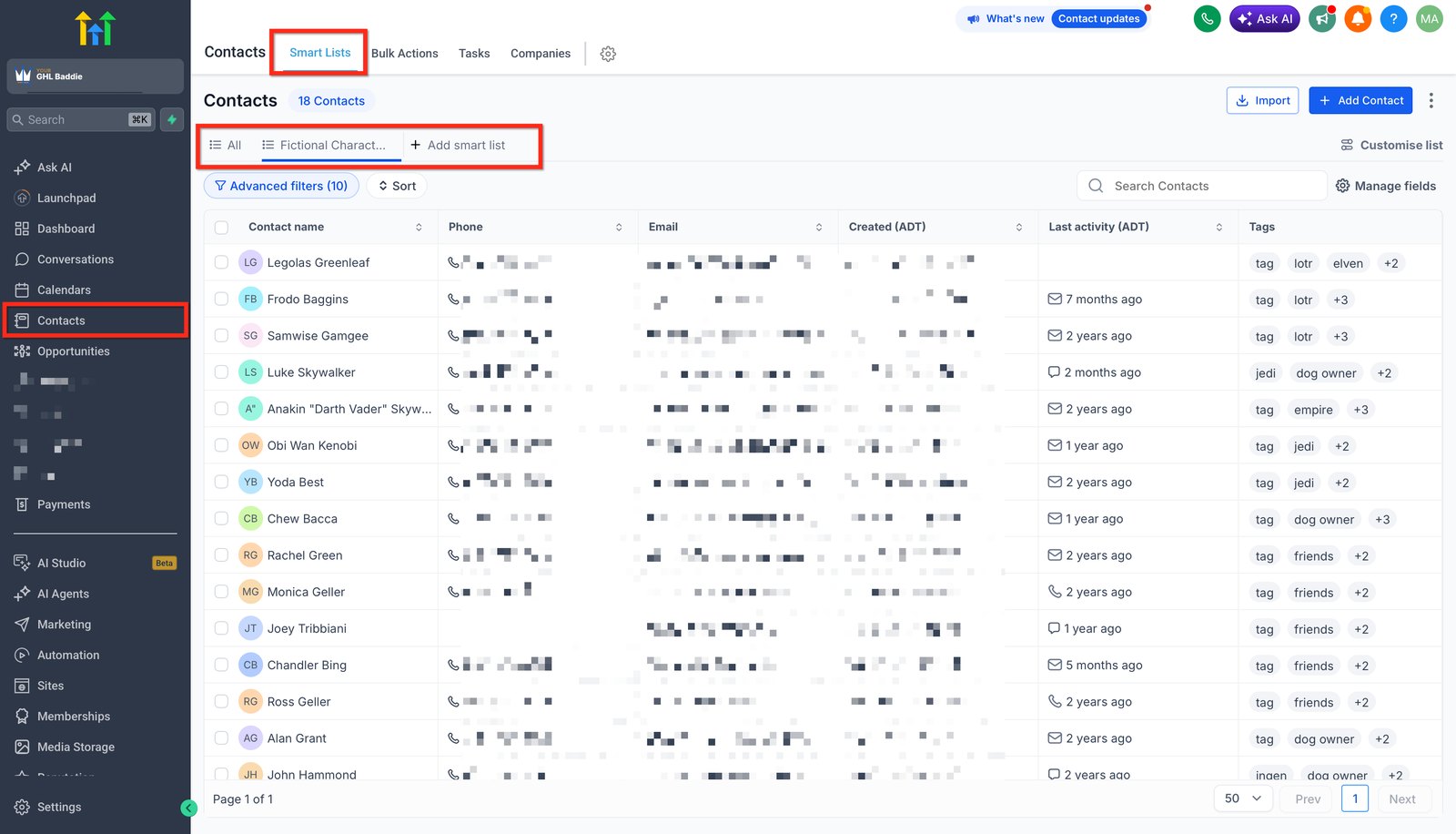
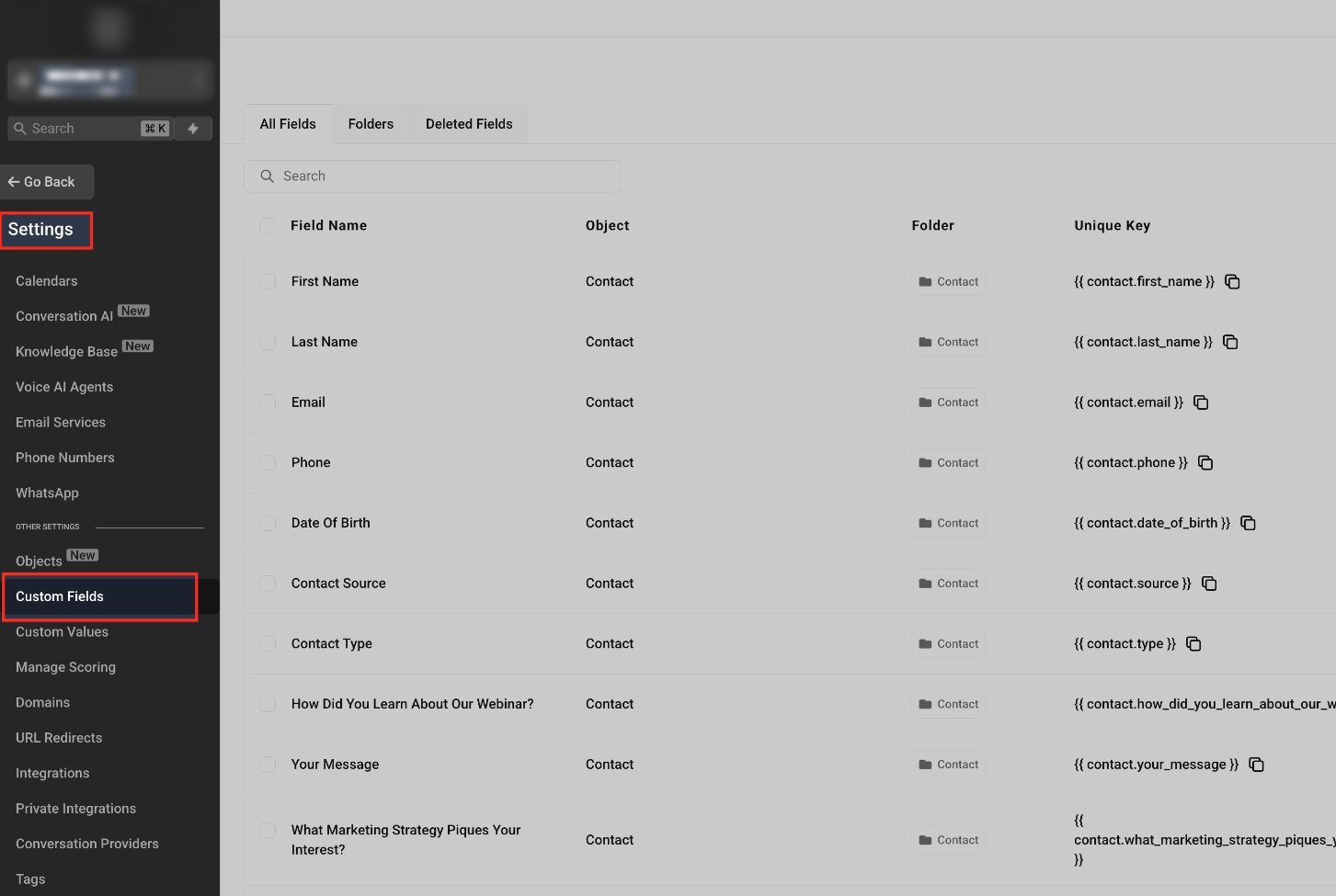
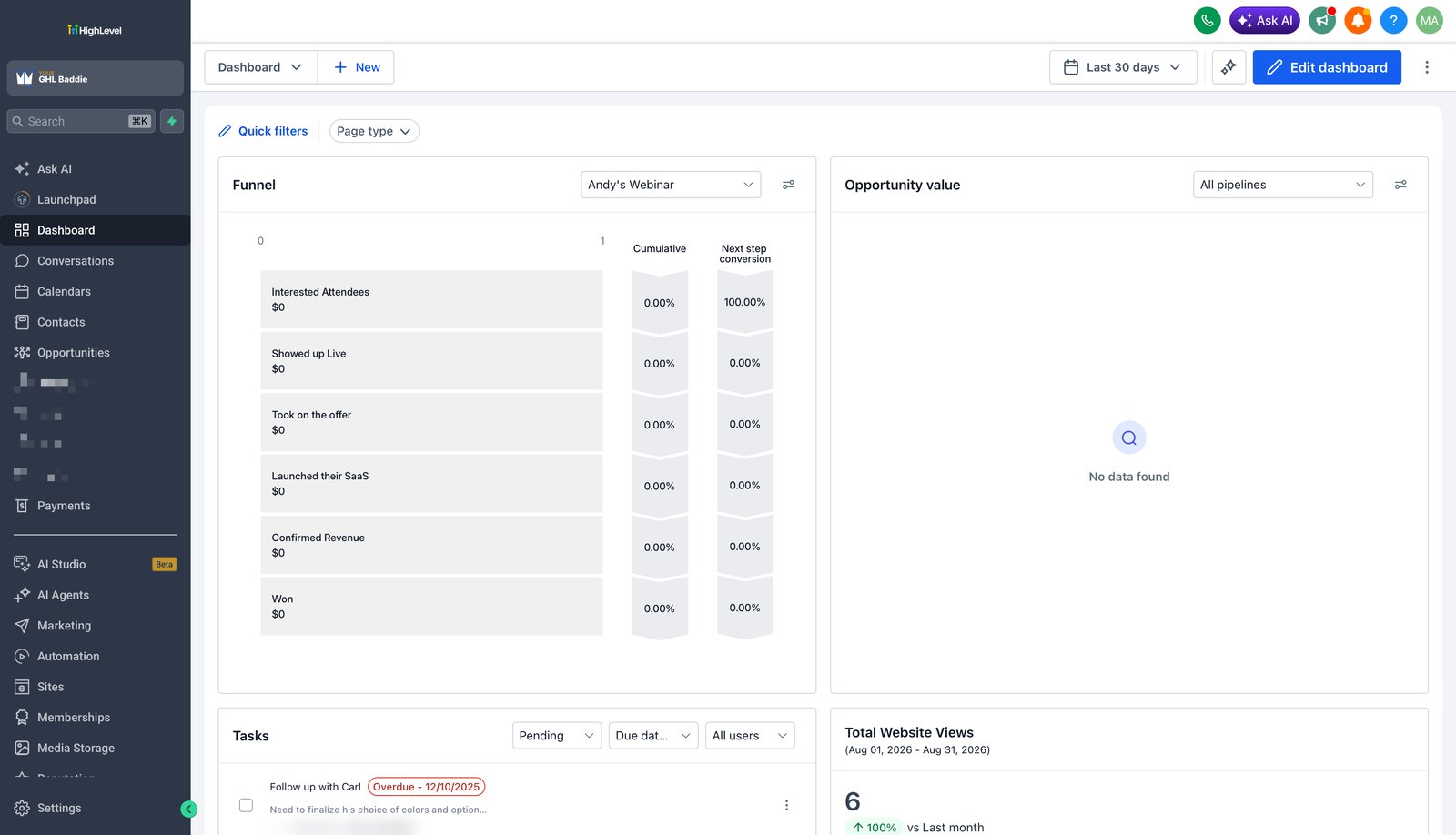
Hi baddie! I'm Hazel. Let's tour a sub-account so you always know where things live. Don't memorize the left menu. Learn what each area is for. People are in Contacts, messages in Conversations, deals in Opportunities, automations in Automation. Settings is at the bottom of the menu. Most of the foundations live here. Custom Fields is one example. Each field has a key you can use in messages. The Dashboard gives a quick view of the account: funnels, deal value and tasks. When a client asks for something, ask: is it a person, a deal, a message, a booking, a page or an automation? Next, get your practice access and take the tour yourself. The steps are in the lesson below.
Hi baddie! Si Hazel 'to. I-tour natin ang sub-account para alam mo lagi kung saan nakalagay ang mga bagay. Huwag mong i-memorize ang left menu. Alamin kung para saan ang bawat area. Tao sa Contacts, messages sa Conversations, deals sa Opportunities, automations sa Automation. Nasa baba ng menu ang Settings. Nandito ang karamihan ng foundations. Halimbawa ang Custom Fields. Bawat field may key na pwede mong gamitin sa messages. Sa Dashboard makikita agad ang overview ng account: funnels, deal value at tasks. Pag may hiningi ang client, tanungin muna: tao ba, deal, message, booking, page o automation? Next, kunin ang practice access mo at i-tour mo mismo. Nasa lesson sa baba ang steps.
What you'll learn
- Get logged in to Hazel's practice sub-account as a user
- Name every build with your practice naming format
- Create your own workflow folder
- Know what each main area of the sub-account sidebar is for
- Find the Settings area and the settings you'll use most
- Use the "where would this live?" habit instead of memorizing menus
- Makapag-login sa practice sub-account ni Hazel bilang user
- Pangalanan ang bawat build gamit ang practice naming format mo
- Gumawa ng sarili mong workflow folder
- Malaman kung para saan ang bawat main area ng sidebar ng sub-account
- Mahanap ang Settings at ang mga settings na madalas mong gagamitin
- Gamitin ang habit na "saan kaya ito nakalagay?" sa halip na kabisaduhin ang menus
New words in this lesson
- Conversations
- GHL's shared inbox for SMS, email, web chat and social messages, organized by contact.
What a client actually asks
"Welcome aboard! First thing — can you check our business hours and phone number are right in the system, and tell me where our forms are?"
Ang tanong ng client
"Welcome aboard! Unang-una — pwede mo bang i-check kung tama sa system ang business hours at phone number namin, at sabihin sa akin kung nasaan ang forms namin?"
Key concepts
When you first open a sub-account, the left sidebar can feel like a lot. Don’t try to memorize it. Learn what each area is for. Menus move; purposes don’t.
Here’s the map, grouped by the question each area answers:
| Question | Area | What lives there |
|---|---|---|
| Who are our leads and customers? | Contacts | Contact records, smart lists, bulk actions |
| What are people saying to us? | Conversations | One inbox for SMS, email, chat and social messages |
| Who’s booked, and when? | Calendars | Calendars and appointments |
| Which deals are we working? | Opportunities | Pipelines and the deals moving through them |
| What happens automatically? | Automation | Workflows |
| What do people see and fill in? | Sites | Funnels, websites, forms, surveys |
| How is it all configured? | Settings | Business info, users, custom fields, phone, email, integrations |
There’s more in the sidebar — Payments, Marketing, Reputation, Reporting and others. You’ll meet those when a job needs them. The seven above cover most beginner work, and most of this curriculum.
Settings is where the foundations live
Most beginners spend their first week looking for things that are in Settings, usually at the bottom of the sidebar. The ones you’ll use most:
- Business profile — name, address, phone and time zone
- My staff / team — the users who can log in, and their permissions
- Custom fields — the extra data a business tracks about each contact (Module 2)
- Tags — the labels used to group contacts
- Phone numbers and email services — what the account sends from
The “where would this live?” habit
When a client asks for something, before you click anything, ask: is this about a person, a deal, a message, a booking, a page, or an automation? That answer is your area. It works on any version of the menu.
Get your practice access
You’ll practice in Hazel’s practice sub-account, YGHLB Practice. She adds you as a user, so you can build forms, funnels, calendars, pipelines and workflows. You can’t create sub-accounts, add users or change agency settings. Lessons that need that level of access are marked Read-only lesson.
Ask for access in GHL Baddie HQ. Give the email address you want to log in with.
Wait for Hazel to add you. She adds you as a user in YGHLB Practice and emails you your student ID from Your GHL Baddie (info@yourghlbaddie.com). Keep that email somewhere safe; your ID goes on every build.
Open the invite email from HighLevel (check spam and promotions too). Click the link and set your password.
Log in. If it asks for a security code, it’s sent to your email or phone.
Check the account name in the switcher at the top of the sidebar. It should show YGHLB Practice. That’s the habit from Lesson 2.
Your naming format
Everyone builds in the same sub-account, so every build gets your name and student ID:
YourName-Practice [what it is]-StudentID
| You build | Name it (Maria, student ID 024) |
|---|---|
| Workflow folder | Maria-Practice workflow-024 |
| Form | Maria-Practice form-024 |
| Funnel | Maria-Practice funnel-024 |
| Chat widget | Maria-Practice chat widget-024 |
| Pipeline | Maria-Practice pipeline-024 |
| Pipeline stages (inside your pipeline) | New Lead, Hot Lead, Booked Call, No-show Nurture |
| Calendar | Maria-Practice calendar-024 |
| Custom values | Maria-Practice Booking URL-024, Maria-Practice Calendar Name-024 (its value is First Consultation) |
| Workflows | Maria-Practice Nurture-024, Maria-Practice Hot Lead-024, Maria-Practice Booked Call-024, Maria-Practice No Show-024 |
| Tag | maria-practice-024 |
| Test contact | First name Maria-Practice, last name contact-024, with your own email and phone |
Your practice sample data
Use this sample business for every build, so all students practice the same setup. It’s made up for practice.
| Sample data | |
|---|---|
| Business | Kalma Physio Studio (practice) |
| Business owner | You play the owner, so use your own name |
| Business hours | Monday to Friday, 8 am to 5 pm, Eastern Time (EST) |
| Calendar | First Consultation, named Maria-Practice calendar-024 |
| Test contact | First name Maria-Practice, last name contact-024 |
| Email and phone | Always your own. Never use a made-up or someone else’s email. Workflows really send to it, and you need to see what arrives. |
Create your workflow folder
Do this once, now, so every workflow you build has a home.
- Open Automation → Workflows.
Click Create folder (it may sit under the + Create button) and name it with your format:
Maria-Practice workflow-024.Every workflow you build in Module 5 and Module 6 goes inside this folder. If you create one outside it by mistake, move it in.
Step-by-step tour
Now look around the practice sub-account. Look, don’t change.
Confirm the account name in the switcher at the top of the sidebar.
Open each of the seven areas in the table above, one at a time. Don’t click into anything yet. Just notice what kind of thing each one holds.
Find the time zone. If you can see Settings, open the business profile and write the time zone down. You’ll need it when you build appointment workflows. As a user, some Settings pages may be hidden. That’s normal.
Find where forms, funnels and calendars are built. Forms and funnels are usually under Sites; calendars have their own area. That’s where your first builds will go.
For a real client, you’d then answer the question at the top of the page: confirm the business hours, phone number and time zone, and say where their forms are. That’s a real first task, done properly.
Mga pangunahing konsepto
Pagbukas mo ng sub-account sa unang beses, parang ang dami ng laman ng left sidebar. Huwag mong kabisaduhin. Aralin kung para saan ang bawat area. Gumagalaw ang menus; ang purpose, hindi.
Heto ang mapa, naka-grupo ayon sa tanong na sinasagot ng bawat area:
| Tanong | Area | Ano ang nandito |
|---|---|---|
| Sino ang leads at customers natin? | Contacts | Contact records, smart lists, bulk actions |
| Ano ang sinasabi ng mga tao sa atin? | Conversations | Iisang inbox para sa SMS, email, chat at social messages |
| Sino ang naka-book, at kailan? | Calendars | Calendars at appointments |
| Aling deals ang hawak natin? | Opportunities | Pipelines at ang deals na gumagalaw dito |
| Ano ang nangyayari nang automatic? | Automation | Workflows |
| Ano ang nakikita at pinupunan ng mga tao? | Sites | Funnels, websites, forms, surveys |
| Paano naka-configure ang lahat? | Settings | Business info, users, custom fields, phone, email, integrations |
Marami pang iba sa sidebar — Payments, Marketing, Reputation, Reporting at iba pa. Makikilala mo sila kapag kailangan na sa trabaho. Ang pito sa itaas ang sumasakop sa karamihan ng beginner work, at sa karamihan ng curriculum na ‘to.
Nasa Settings ang mga pundasyon
Ang unang linggo ng karamihan ng beginners ay napupunta sa paghahanap ng mga bagay na nasa Settings pala, kadalasan nasa baba ng sidebar. Ito ang mga madalas mong gagamitin:
- Business profile — pangalan, address, phone at time zone
- My staff / team — ang mga user na pwedeng mag-login, at ang permissions nila
- Custom fields — ang dagdag na data na tina-track ng business sa bawat contact (Module 2)
- Tags — ang labels na pang-grupo ng contacts
- Phone numbers at email services — kung saan nagpapadala ang account
Ang habit na “saan kaya ito nakalagay?”
Kapag may hiningi ang client, bago ka pumindot ng kahit ano, itanong: tungkol ba ito sa tao, deal, message, booking, page, o automation? Ang sagot ang area mo. Gumagana ito sa kahit anong version ng menu.
Kunin ang practice access mo
Magpa-practice ka sa practice sub-account ni Hazel, ang YGHLB Practice. Ida-dagdag ka niya bilang user, kaya pwede kang mag-build ng forms, funnels, calendars, pipelines at workflows. Hindi ka pwedeng gumawa ng sub-account, mag-add ng users o magbago ng agency settings. Ang mga lesson na kailangan ng ganoong access ay may markang Read-only na lesson.
Humingi ng access sa GHL Baddie HQ. Ibigay ang email na gusto mong gamitin sa pag-login.
Hintayin na i-add ka ni Hazel. Ida-dagdag ka niya bilang user sa YGHLB Practice at ie-email sa’yo ang student ID mo mula sa Your GHL Baddie (info@yourghlbaddie.com). Itago mo nang maayos ang email na ‘yon; nakalagay ang ID mo sa bawat build.
Buksan ang invite email mula sa HighLevel (i-check din ang spam at promotions). I-click ang link at i-set ang password mo.
Mag-login. Kung humingi ng security code, ipinadala ito sa email o phone mo.
I-check ang account name sa switcher sa taas ng sidebar. Dapat YGHLB Practice ang nakalagay. ‘Yan ang habit mula sa Lesson 2.
Ang naming format mo
Iisang sub-account ang ginagamit ng lahat, kaya bawat build ay may pangalan at student ID mo:
YourName-Practice [ano ito]-StudentID
| Ang bina-build mo | Pangalan (Maria, student ID 024) |
|---|---|
| Workflow folder | Maria-Practice workflow-024 |
| Form | Maria-Practice form-024 |
| Funnel | Maria-Practice funnel-024 |
| Chat widget | Maria-Practice chat widget-024 |
| Pipeline | Maria-Practice pipeline-024 |
| Pipeline stages (sa loob ng pipeline mo) | New Lead, Hot Lead, Booked Call, No-show Nurture |
| Calendar | Maria-Practice calendar-024 |
| Custom values | Maria-Practice Booking URL-024, Maria-Practice Calendar Name-024 (ang value nito ay First Consultation) |
| Workflows | Maria-Practice Nurture-024, Maria-Practice Hot Lead-024, Maria-Practice Booked Call-024, Maria-Practice No Show-024 |
| Tag | maria-practice-024 |
| Test contact | First name Maria-Practice, last name contact-024, gamit ang sarili mong email at phone |
Ang practice sample data mo
Gamitin ang sample business na ito sa bawat build, para pare-pareho ang setup na pina-practice ng lahat ng estudyante. Gawa-gawa lang ito para sa practice.
| Sample data | |
|---|---|
| Business | Kalma Physio Studio (practice) |
| Business owner | Ikaw ang gaganap na owner, kaya gamitin ang sarili mong pangalan |
| Business hours | Monday hanggang Friday, 8 am hanggang 5 pm, Eastern Time (EST) |
| Calendar | First Consultation, na pinangalanang Maria-Practice calendar-024 |
| Test contact | First name Maria-Practice, last name contact-024 |
| Email at phone | Laging sa’yo. Huwag gumamit ng gawa-gawang email o email ng iba. Talagang nagpapadala dito ang workflows, at kailangan mong makita kung ano ang dumarating. |
Gumawa ng sarili mong workflow folder
Gawin ito nang isang beses, ngayon na, para may lalagyan ang bawat workflow na ibu-build mo.
- Buksan ang Automation → Workflows.
I-click ang Create folder (baka nasa ilalim ng + Create button) at pangalanan gamit ang format mo:
Maria-Practice workflow-024.Lahat ng workflow na ibu-build mo sa Module 5 at Module 6 ay ilalagay sa folder na ito. Kung nakagawa ka ng isa sa labas nito, ilipat mo sa loob.
Tour, step by step
Ngayon, tumingin-tingin sa practice sub-account. Tumingin lang, huwag magbago.
Kumpirmahin ang account name sa switcher sa taas ng sidebar.
Buksan isa-isa ang pitong area sa table sa itaas. Huwag munang mag-click sa loob. Pansinin lang kung anong klaseng bagay ang laman ng bawat isa.
Hanapin ang time zone. Kung nakikita mo ang Settings, buksan ang business profile at isulat ang time zone. Kakailanganin mo ito pag nag-build ka ng appointment workflows. Bilang user, baka nakatago ang ilang Settings page. Normal ‘yan.
Hanapin kung saan ginagawa ang forms, funnels at calendars. Kadalasan nasa ilalim ng Sites ang forms at funnels; may sariling area ang calendars. Doon pupunta ang mga unang build mo.
Para sa totoong client, sasagutin mo naman ang tanong sa itaas ng page: kumpirmahin ang business hours, phone number at time zone, at sabihin kung nasaan ang forms nila. ‘Yan ang totoong unang task, nagawa nang maayos.
Common mistakes
- Pinapangalanang "Test" o "Workflow 1" ang build
- Maraming estudyante ang nagbu-build sa iisang practice sub-account. Gamitin ang naming format mo sa lahat ng ginagawa mo, para laging mahanap mo (at ni Hazel).
- Ine-edit ang hindi sa'yo
- Kung walang pangalan at student ID mo ang build, sa iba 'yon o kay Hazel. Tumingin lang, huwag galawin.
- Kinakabisado ang pwesto ng bawat menu
- Gumagalaw ang menus. Aralin kung PARA SAAN ang bawat area at mahahanap mo pa rin ang mga bagay kahit ma-redesign. Itanong: "Tungkol ba ito sa tao, deal, message, booking, page, o automation?"
- Binabago ang business settings para "makita kung ano'ng mangyayari"
- Ang settings gaya ng business info, time zone at phone numbers ay may epekto sa live na business. Tumingin lang, huwag baguhin, maliban kung inutusan ka — at isulat muna ang original value.
- Hindi chine-check ang time zone ng account
- Kapag mali ang time zone, mali ang oras ng bawat reminder at wait step. Tandaan kung saan ito nakalagay ngayon; malaking bagay ito sa Module 6.
- Naming a build "Test" or "Workflow 1"
- Many students build in the same practice sub-account. Use your naming format on everything you make, so you (and Hazel) can always find it.
- Editing something that isn't yours
- If a build doesn't have your name and student ID on it, it belongs to someone else or to Hazel. Look, don't touch.
- Memorizing menu positions
- Menus move. Learn what each area is FOR and you'll find things even after a redesign. Ask "is this about a person, a deal, a message, a booking, a page, or an automation?"
- Changing business settings to "see what happens"
- Settings like business info, time zone and phone numbers affect a live business. Look, don't change, unless you've been asked to — and write down the original value first.
- Not checking the account time zone
- A wrong time zone makes every reminder and wait step fire at the wrong time. Note where it lives now; it matters a lot in Module 6.
Practice
🔒 Practice opens once you've completed every lesson in Learn.
Want to follow along in a real account? You need GHL access — get a free 30-day trial + free live training (affiliate link). Gusto mo bang sumabay sa totoong account? Kailangan mo ng GHL access — kumuha ng libreng 30-day trial + libreng live training (affiliate link).
Knowledge check
5 quick questions. You'll see why each answer is right or wrong as you go, and you can retake it as often as you like.