Module 6 · Lesson 1 of 2
Calendar Types and Building Your First Calendar Mga Calendar Type at Pag-build ng Unang Calendar Mo
Awaiting hands-on verification. The concepts here are sound, but the click-by-click steps have not yet been re-walked in a live GoHighLevel sub-account. GoHighLevel changes often, so a menu name or screen may differ from what you see. Flagged rather than presented as verified.
Before this: Testing a Workflow Before It Goes Live
Your knowledge-check score on Testing a Workflow Before It Goes Live was under 60%. Worth a quick re-read before this one — it builds on it.
On this page

In this lesson
Calendar Types and Building Your First Calendar
Sa lesson na ’to
Mga Calendar Type at Pag-build ng Unang Calendar Mo

Read the transcript
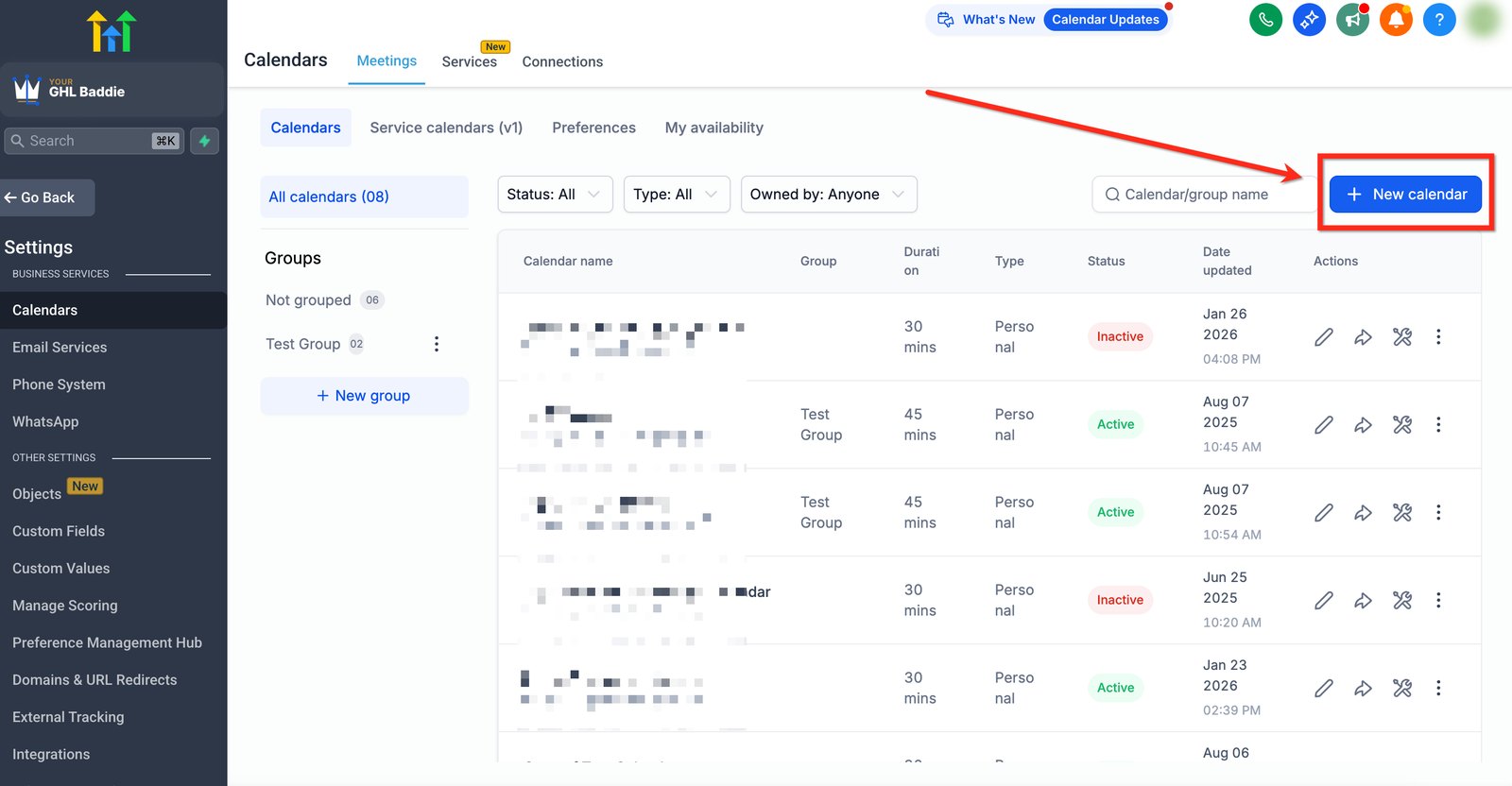
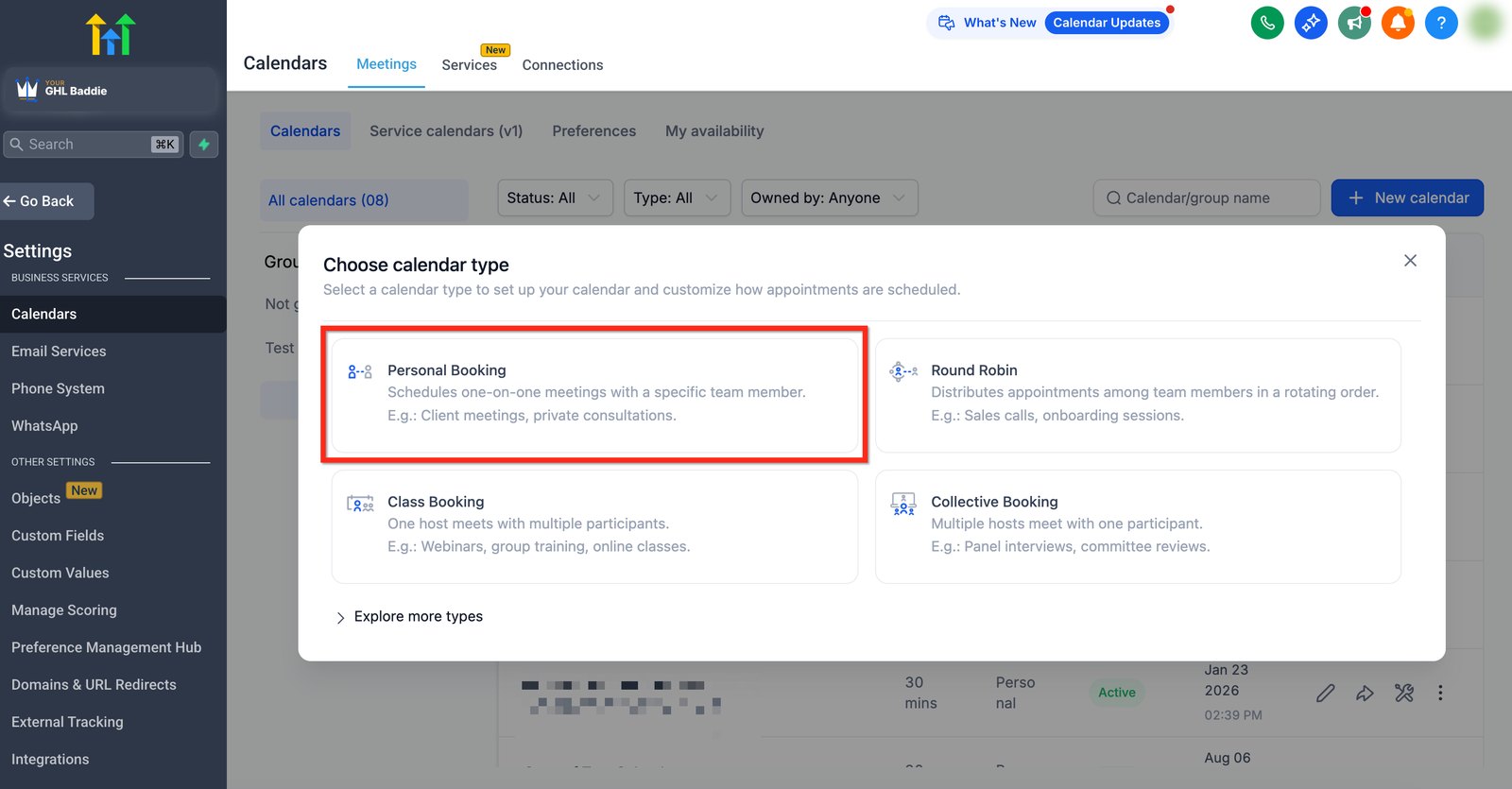
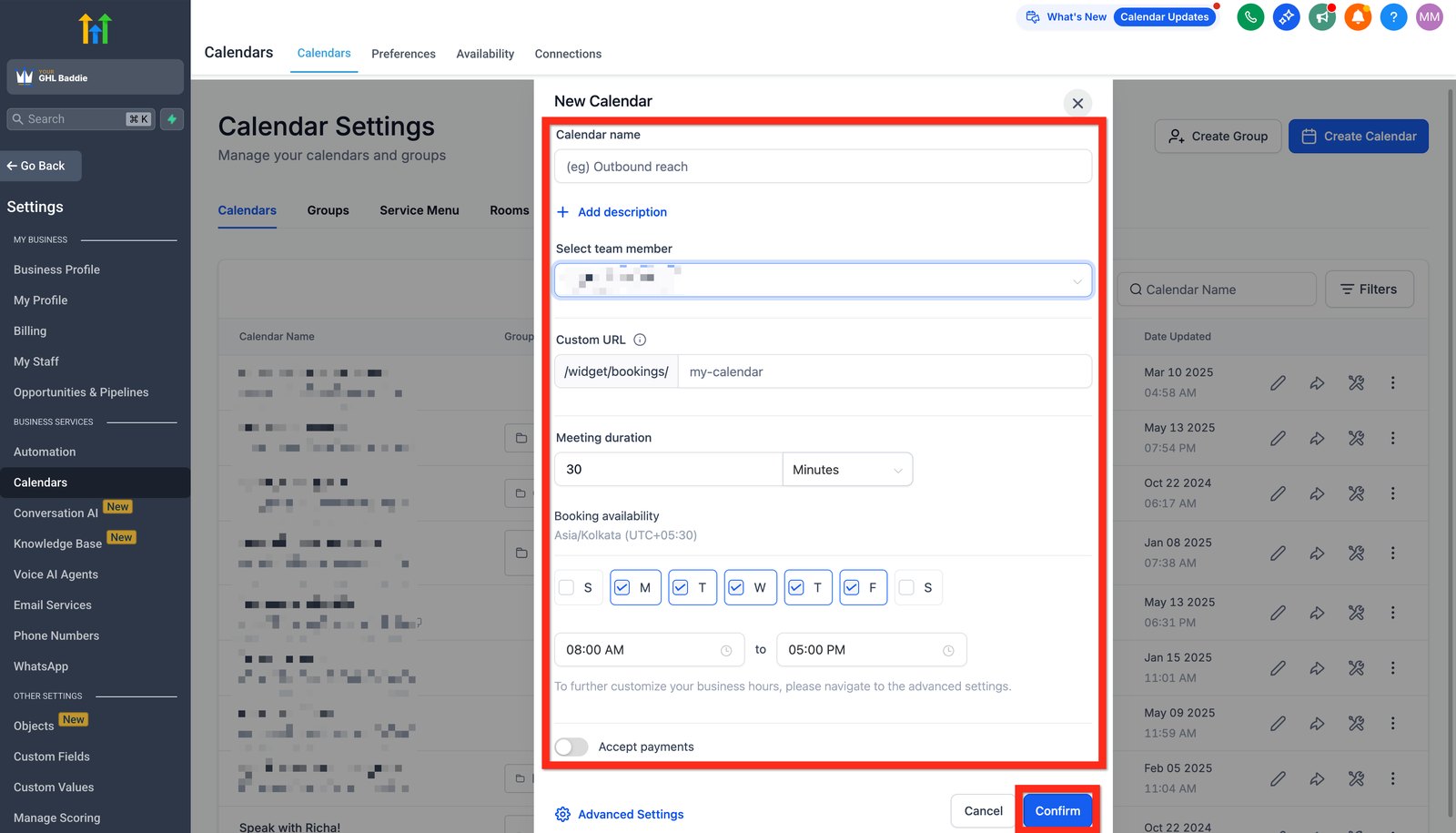
Hi baddie! I'm Hazel. Let's pick the right calendar type and build your first calendar. Go to Settings, then Calendars, and click New calendar. Before you build, ask who takes the bookings and how many people attend. One person takes the booking? Personal Booking. A team sharing bookings is Round Robin. One host with many people is Class Booking. Set the name, team member, custom URL and meeting duration. Then the booking days and hours. Most calendar problems are availability settings, so check twice. Connect each person's own calendar, so GHL never offers a busy time. Read the lesson below, then try the practice.
Hi baddie! Si Hazel 'to. Piliin natin ang tamang calendar type at gawin ang first calendar mo. Go to Settings, then Calendars, at i-click ang New calendar. Bago mag-build, tanungin kung sino ang tatanggap ng bookings at ilan ang attendees. Isang tao lang ang tatanggap? Personal Booking. Team na naghahati ng bookings, Round Robin. Isang host na maraming tao, Class Booking. I-set ang name, team member, custom URL at meeting duration. Tapos ang booking days at hours. Karamihan ng calendar problems ay sa availability, kaya i-check nang dalawang beses. I-connect ang sariling calendar ng bawat tao, para hindi mag-offer ang GHL ng oras na busy sila. Basahin ang lesson sa baba, tapos subukan ang practice.
What you'll learn
- Match a client's booking situation to the right kind of calendar
- Explain the difference between one person's calendar, a shared rotation and a group session
- Know the availability settings that cause most booking problems
- Build a round robin calendar with the right booking rules
- Add the calendar to your funnel's booking page
- Itugma ang booking situation ng client sa tamang klase ng calendar
- Ipaliwanag ang pagkakaiba ng calendar ng isang tao, shared rotation at group session
- Malaman ang availability settings na sanhi ng karamihan ng booking problems
- Mag-build ng round robin calendar na may tamang booking rules
- Ilagay ang calendar sa booking page ng funnel mo
New words in this lesson
- Calendar
- Where people book time with a business. GHL has several types (personal, round robin, class, collective, service) for different booking situations.
- Round robin
- A calendar that shares bookings among several team members, offering times when someone is available.
What a client actually asks
"Both our reps should be able to take bookings, and we don't care who gets which — just share them out fairly."
Ang tanong ng client
"Dapat parehong makatanggap ng bookings ang dalawang rep namin, at wala kaming pakialam kung sino ang makakakuha ng alin — basta patas ang hatian."
Key concepts
GoHighLevel has several calendar types because businesses book in different ways. Choosing the type is a requirements question, not a technical one. Ask: who takes this booking, and how many people attend?
The main types, in plain words
| Situation | Calendar type | Example |
|---|---|---|
| One person takes these bookings | Personal / simple calendar | A solo consultant’s discovery calls |
| Several people take the same booking, shared out | Round robin | Two reps sharing sales calls |
| One session, many attendees | Class / group (some accounts call it an event calendar) | A Saturday workshop for 20 people |
| Several team members must all attend | Collective booking | A call needing both the designer and the project manager |
| A menu of services with different lengths | Service calendar | A salon: haircut 30 min, color 90 min |
The client at the top of the page has two reps who should share bookings, and it doesn’t matter who gets which. That’s a round robin. It hands bookings out among the team and only offers times when someone is available.
Availability is where bookings go wrong
Most “the calendar is broken” complaints are really availability settings:
- Working hours — when can bookings happen at all?
- Duration and slot interval — how long is each booking, and how often do slots start?
- Buffer time — breathing room before or after each appointment
- Minimum notice — how far ahead someone must book
- Connected calendars — whether GHL can see each person’s other commitments
The last one catches people out. If a rep’s own Google or Outlook calendar isn’t connected, GHL can’t see their dentist appointment and will happily offer that time to a lead.
Ask before you build
Before creating any calendar, get answers to these from the client:
- Who takes these bookings? One person, or several?
- How long is each appointment, and do they need a gap between them?
- What hours and days are bookable?
- How much notice do they need?
- Are there any rules about who can take which booking?
Question 5 is the one that turns a simple job complicated. If the answer is “Jun only does commercial, Maricel only does residential”, one round robin won’t do it. Try the Two-Rep Calendar scenario in the Build Lab to work through that.
Try it: choose the type
For each, name the calendar type before reading the answer:
- “I run a free webinar every Thursday for up to 50 people.” → Class / group
- “Book a call with me.” (solo coach) → Personal
- “Our three advisors all do the same intro call — whoever’s free.” → Round robin
- “Cut is 30 minutes, color is 2 hours, both with any stylist.” → Service calendar
Build your First Consultation calendar
Your practice calendar is a round robin, so it assigns each booking to a team member automatically. On a client account the team is the business owner and their staff. In the practice account, the team is you.
Create a new calendar. In Calendars → Calendar settings, click + New calendar and choose Round robin. Don’t use the “Personal Calendar” that already has your name; that one was made automatically. Name it
Maria-Practice calendar-024(the Custom URL fills itself in from the name), choose yourself under Select team members, set Meeting duration to 60 minutes, and click Confirm.Open your calendar to finish it. Search for it in the list and click the pencil. The rest of the settings are in the sections on the left: Staff & location, Availability, Booking rules, and Advanced settings. On a client account with several team members, Staff & location → Contact routing preference → “Always book with the contact’s assigned user” keeps a returning lead with the person they know. With only you on the calendar, leave it off: it also moves the form in front of the time picker.
Set the meeting location. Google Meet gives every booking its own new link, but it needs your Google account connected to your user profile (Profile → calendar settings → connect Google, pick your primary calendar, then refresh the page). This is optional: only connect if you’re comfortable, and disconnect when you finish the course. Otherwise, set a custom location such as “Online, link sent by email” (Staff & location → Meeting location → Custom).
Set availability: Monday to Friday, 8:00 am to 5:00 pm, Eastern Time (EST). Open Availability, click your name, then Edit → Customize schedule for this calendar only. Change the Timezone to America/New_York (EST) (yours probably shows Asia/Manila or similar), check the hours, and save. Use “for this calendar only” so your own working hours elsewhere don’t change.
Set the booking rules:
- Duration: 1 hour
- Meeting interval (the slot interval): every 15 minutes
- Minimum scheduling notice: 2 days
- Date range: 28 days
- Maximum bookings per slot: 1 (per team member)
- Maximum bookings per day: 7
Set the booking form options in Advanced settings → Form & confirmation: make sure the Consent checkbox is on, turn on Sticky contacts → Pre-populate fields, and check Auto-confirm new calendar meetings is on (at the bottom). The consent and auto-confirm switches are usually on already.
Check the calendar’s own messages are off for the lead. In Advanced settings → Notifications & policies, only In-app should be green on the booked lines. Email and SMS should stay grey, because your workflows send those in Lesson 19, so leads don’t get two of everything.
Create the Calendar Name custom value. In Settings → Custom Values, add
Maria-Practice Calendar Name-024with the value First Consultation. Put it in the calendar’s description, and you’ll use it again in your confirmation email. Change the name in one place and it changes everywhere.Save and make sure the calendar is active (published).
Add it to your funnel. Open the Booking page of
Maria-Practice funnel-024, add a calendar element under the headline, choose your calendar, and save.
Check your calendar
Open your funnel’s Booking page on your phone and look at the times on offer. Don’t book yet: in Lesson 19, a booking starts your workflows.
- only Monday to Friday, 8 am to 5 pm EST, with starts every 15 minutes
- nothing sooner than 2 days from now, and nothing more than 4 weeks ahead
- the consent checkbox shows on the booking form
The booking page may show times in your own time zone. Philippine time is 12 or 13 hours ahead of EST, so 8 am EST shows as 8 or 9 pm. If you can book a slot tomorrow, the minimum notice isn’t saved.
Mga pangunahing konsepto
May ilang calendar types ang GoHighLevel dahil magkakaiba ang paraan ng pag-book ng mga business. Tanong sa requirements ang pagpili ng type, hindi technical na tanong. Itanong: sino ang tumatanggap ng booking na ‘to, at ilang tao ang dadalo?
Ang mga pangunahing type, sa simpleng salita
| Sitwasyon | Calendar type | Halimbawa |
|---|---|---|
| Isang tao lang ang tumatanggap ng bookings | Personal / simple calendar | Discovery calls ng solo consultant |
| Ilang tao ang tumatanggap ng parehong booking, hati-hati | Round robin | Dalawang rep na naghahati sa sales calls |
| Isang session, maraming dadalo | Class / group booking | Saturday workshop para sa 20 tao |
| Kailangang dumalo ang ilang team members nang sabay | Collective booking | Call na kailangan pareho ang designer at project manager |
| Menu ng services na magkakaiba ang haba | Service calendar | Salon: gupit 30 min, kulay 90 min |
Ang client sa itaas ay may dalawang rep na dapat maghati sa bookings, at hindi mahalaga kung sino ang makakakuha ng alin. Round robin ‘yan. Ipinapamigay nito ang bookings sa team at nag-o-offer lang ng oras kapag may available.
Sa availability nagkakamali ang bookings
Karamihan ng reklamong “sira ang calendar” ay availability settings pala:
- Working hours — kailan pwedeng mag-book?
- Duration at slot interval — gaano katagal ang bawat booking, at gaano kadalas nagsisimula ang slots?
- Buffer time — pahinga bago o pagkatapos ng bawat appointment
- Minimum notice — gaano kaaga dapat mag-book ang tao
- Connected calendars — kung nakikita ng GHL ang iba pang lakad ng bawat tao
Ang huli ang madalas makahuli. Kung hindi konektado ang sariling Google o Outlook calendar ng rep, hindi makikita ng GHL ang dentist appointment niya at masaya nitong io-offer ang oras na ‘yon sa lead.
Magtanong bago mag-build
Bago gumawa ng kahit anong calendar, kunin ang sagot ng client sa mga ito:
- Sino ang tumatanggap ng bookings na ‘to? Isang tao, o ilan?
- Gaano katagal ang bawat appointment, at kailangan ba ng pagitan?
- Anong oras at araw ang pwedeng i-book?
- Gaano kaagang notice ang kailangan nila?
- May rules ba kung sino ang pwedeng tumanggap ng aling booking?
Ang tanong 5 ang nagpapakumplikado sa simpleng trabaho. Kung ang sagot ay “Commercial lang si Jun, residential lang si Maricel”, hindi kakayanin ng iisang round robin. Subukan ang Two-Rep Calendar scenario sa Build Lab para pag-aralan ‘yan.
Subukan: piliin ang type
Para sa bawat isa, sabihin ang calendar type bago basahin ang sagot:
- “May libreng webinar ako tuwing Thursday para sa hanggang 50 tao.” → Class / group
- “Mag-book ng call sa akin.” (solo coach) → Personal
- “Iisang intro call ang ginagawa ng tatlong advisors namin — kung sino ang free.” → Round robin
- “30 minutes ang gupit, 2 hours ang kulay, kahit sinong stylist.” → Service calendar
I-build ang First Consultation calendar mo
Round robin ang practice calendar mo, kaya kusa nitong ina-assign ang bawat booking sa isang team member. Sa client account, ang team ay ang business owner at ang staff nila. Sa practice account, ikaw ang team.
Gumawa ng bagong calendar. Sa Calendars → Calendar settings, i-click ang + New calendar at piliin ang Round robin. Huwag gamitin ang “Personal Calendar” na may pangalan mo na; kusa ‘yong ginawa. Pangalanan itong
Maria-Practice calendar-024(kusang mapupunan ang Custom URL mula sa pangalan), piliin ang sarili mo sa Select team members, gawing 60 minutes ang Meeting duration, at i-click ang Confirm.Buksan ang calendar mo para tapusin ito. Hanapin ito sa listahan at i-click ang lapis. Nasa mga section sa kaliwa ang ibang settings: Staff & location, Availability, Booking rules, at Advanced settings. Sa client account na maraming team member, ang Staff & location → Contact routing preference → “Always book with the contact’s assigned user” ang nagpapanatili sa bumabalik na lead sa taong kilala nila. Kung ikaw lang ang nasa calendar, iwan itong off: inililipat din nito ang form sa unahan ng time picker.
I-set ang meeting location. Binibigyan ng Google Meet ang bawat booking ng sariling bagong link, pero kailangan nitong nakakonekta ang Google account mo sa user profile mo (Profile → calendar settings → connect Google, piliin ang primary calendar mo, tapos i-refresh ang page). Optional ito: kumonekta lang kung komportable ka, at i-disconnect pagkatapos ng course. Kung hindi, mag-set ng custom location gaya ng “Online, link sent by email” (Staff & location → Meeting location → Custom).
I-set ang availability: Monday hanggang Friday, 8:00 am hanggang 5:00 pm, Eastern Time (EST). Buksan ang Availability, i-click ang pangalan mo, tapos Edit → Customize schedule for this calendar only. Palitan ang Timezone ng America/New_York (EST) (malamang Asia/Manila o katulad ang nakalagay sa’yo), i-check ang oras, at i-save. Gamitin ang “for this calendar only” para hindi magbago ang sarili mong working hours sa ibang lugar.
I-set ang booking rules:
- Duration: 1 oras
- Meeting interval (ang slot interval): kada 15 minuto
- Minimum scheduling notice: 2 araw
- Date range: 28 araw
- Maximum bookings per slot: 1 (kada team member)
- Maximum bookings per day: 7
I-set ang booking form options sa Advanced settings → Form & confirmation: siguraduhing naka-on ang Consent checkbox, i-on ang Sticky contacts → Pre-populate fields, at i-check na naka-on ang Auto-confirm new calendar meetings (nasa ibaba). Kadalasan naka-on na ang consent at auto-confirm.
I-check na naka-off ang sariling messages ng calendar para sa lead. Sa Advanced settings → Notifications & policies, In-app lang dapat ang green sa mga linya ng booked. Dapat manatiling grey ang Email at SMS, dahil ang workflows mo ang magpapadala niyan sa Lesson 19, para hindi doble ang natatanggap ng leads.
Gumawa ng Calendar Name custom value. Sa Settings → Custom Values, idagdag ang
Maria-Practice Calendar Name-024na may value na First Consultation. Ilagay ito sa description ng calendar, at gagamitin mo ulit sa confirmation email mo. Palitan ang pangalan sa iisang lugar at magbabago ito saanman.I-save at siguraduhing active ang calendar (published).
Ilagay ito sa funnel mo. Buksan ang Booking page ng
Maria-Practice funnel-024, magdagdag ng calendar element sa ilalim ng headline, piliin ang calendar mo, at i-save.
I-check ang calendar mo
Buksan ang Booking page ng funnel mo sa phone at tingnan ang mga oras na naka-offer. Huwag munang mag-book: sa Lesson 19, magsisimula ng workflows mo ang booking.
- Monday hanggang Friday lang, 8 am hanggang 5 pm EST, nagsisimula kada 15 minuto
- walang mas maaga sa 2 araw mula ngayon, at walang lampas sa 4 na linggo
- lumalabas ang consent checkbox sa booking form
Baka nasa sarili mong time zone ang oras na makikita sa booking page. Mas advanced nang 12 o 13 oras ang oras sa Pilipinas kaysa EST, kaya ang 8 am EST ay lalabas na 8 o 9 pm. Kung kaya mong mag-book ng slot bukas, hindi na-save ang minimum notice.
Common mistakes
- Gumagamit ng calendar ng isang tao para sa team
- Kung ilang tao ang tumatanggap ng parehong klase ng booking, gumamit ng calendar type na para sa team (round robin), para nahahati ang bookings at walang nado-double-book.
- Binabalewala ang buffer time
- Ang magkakasunod na 30-minute calls nang walang pagitan ay walang iniiwang oras para sa notes o biyahe. Tanungin ang client kung gaano kalaking pahinga ang kailangan nila sa pagitan ng appointments.
- Hindi kinokonekta ang sariling calendar ng team member
- Kung hindi konektado ang Google o Outlook calendar ng rep, hindi makikita ng GHL ang iba nilang lakad at mag-o-offer ito ng oras na busy pala sila.
- Nakakalimutan ang minimum notice
- Kapag walang minimum notice period, pwedeng may mag-book ng slot na magsisimula sa loob ng limang minuto. Karamihan ng business ay gusto ng hindi bababa sa ilang oras.
- Using one person's calendar for a team
- If several people take the same kind of booking, use a calendar type built for a team (round robin), so bookings are shared and nobody is double-booked.
- Ignoring buffer time
- Back-to-back 30-minute calls with no gap leave no time for notes or travel. Ask the client how much breathing room they need between appointments.
- Not connecting the team member's own calendar
- If a rep's Google or Outlook calendar isn't connected, GHL can't see their other commitments and will offer times they're actually busy.
- Forgetting minimum notice
- Without a minimum notice period, someone can book a slot starting in five minutes. Most businesses want at least a few hours.
Practice
🔒 Practice opens once you've completed every lesson in Learn.
Ready for a harder one? Try a real client scenario
Knowledge check
5 quick questions. You'll see why each answer is right or wrong as you go, and you can retake it as often as you like.