Module 6 · Lesson 2 of 2
Appointment Workflows: Booked Calls, Reminders and No-Shows Appointment Workflows: Booked Calls, Reminders at No-Shows
Awaiting hands-on verification. The concepts here are sound, but the click-by-click steps have not yet been re-walked in a live GoHighLevel sub-account. GoHighLevel changes often, so a menu name or screen may differ from what you see. Flagged rather than presented as verified.
Before this: Calendar Types and Building Your First Calendar , Wait Steps and Getting Timing Right
Your knowledge-check score on Calendar Types and Building Your First Calendar was under 60%. Worth a quick re-read before this one — it builds on it.
On this page

In this lesson
Appointment Workflows: Booked Calls, Reminders and No-Shows
Sa lesson na ’to
Appointment Workflows: Booked Calls, Reminders at No-Shows

Read the transcript
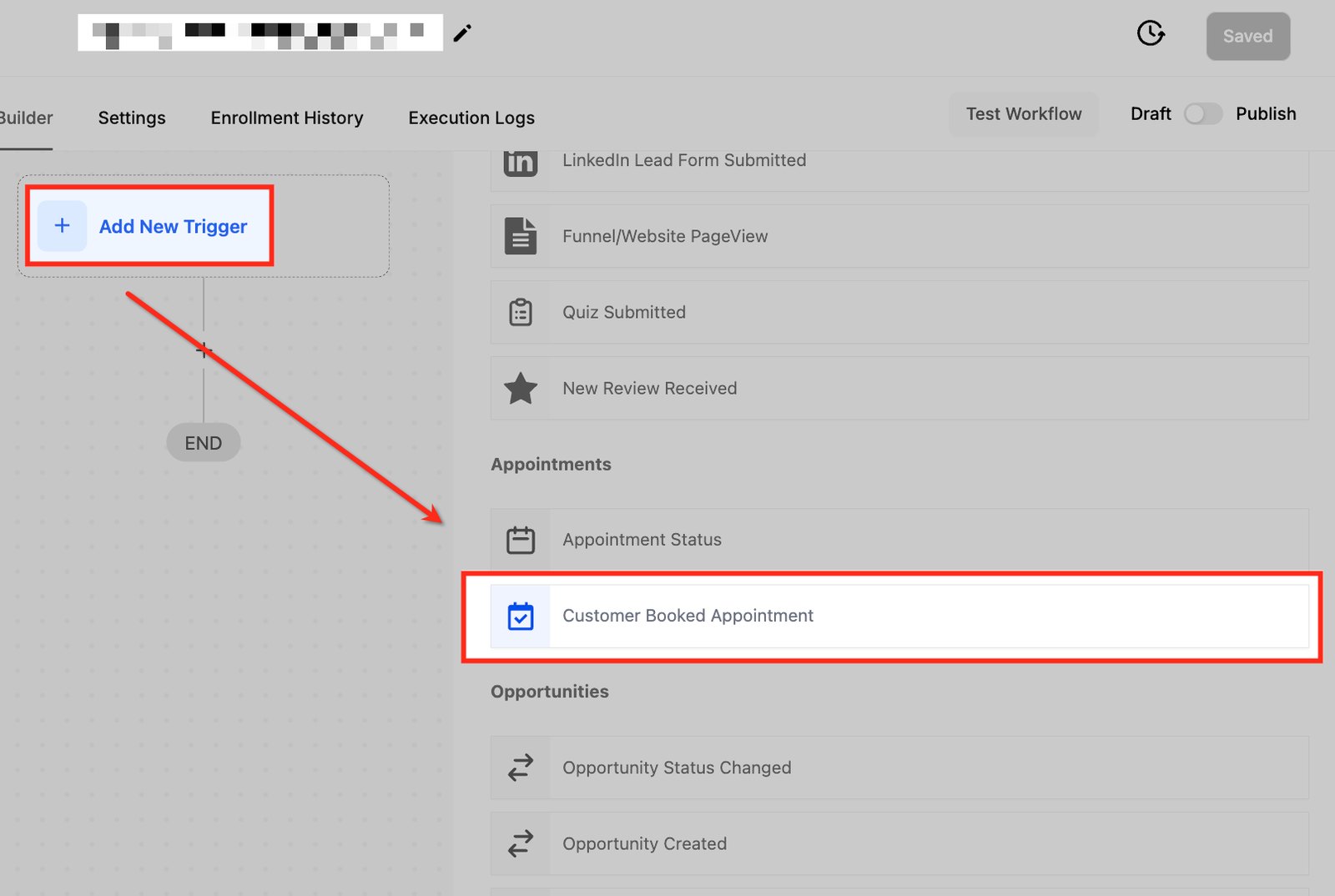
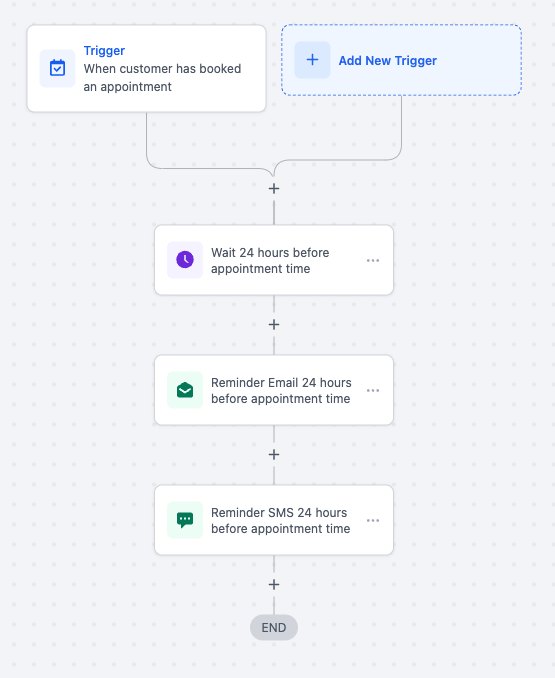
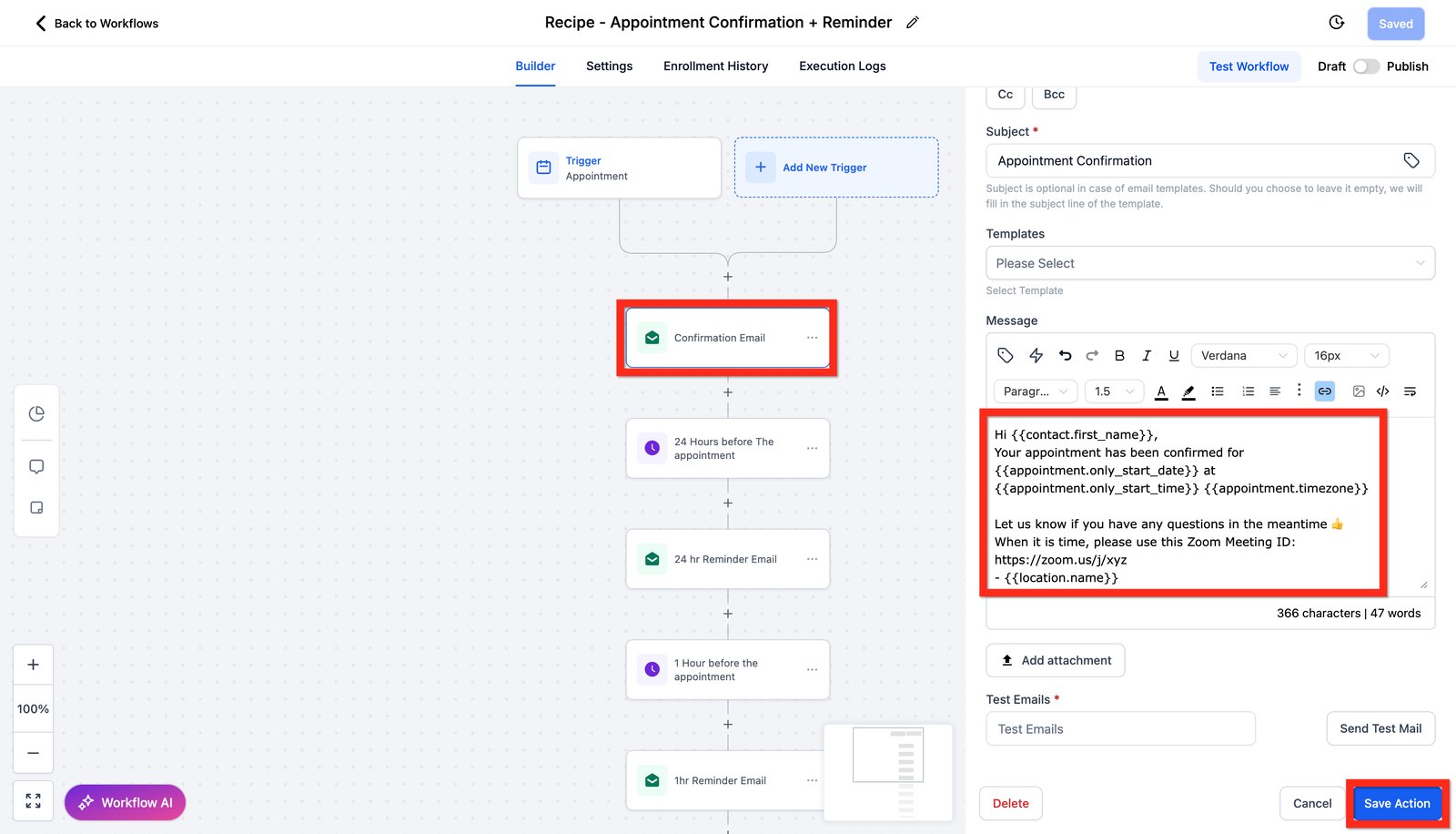
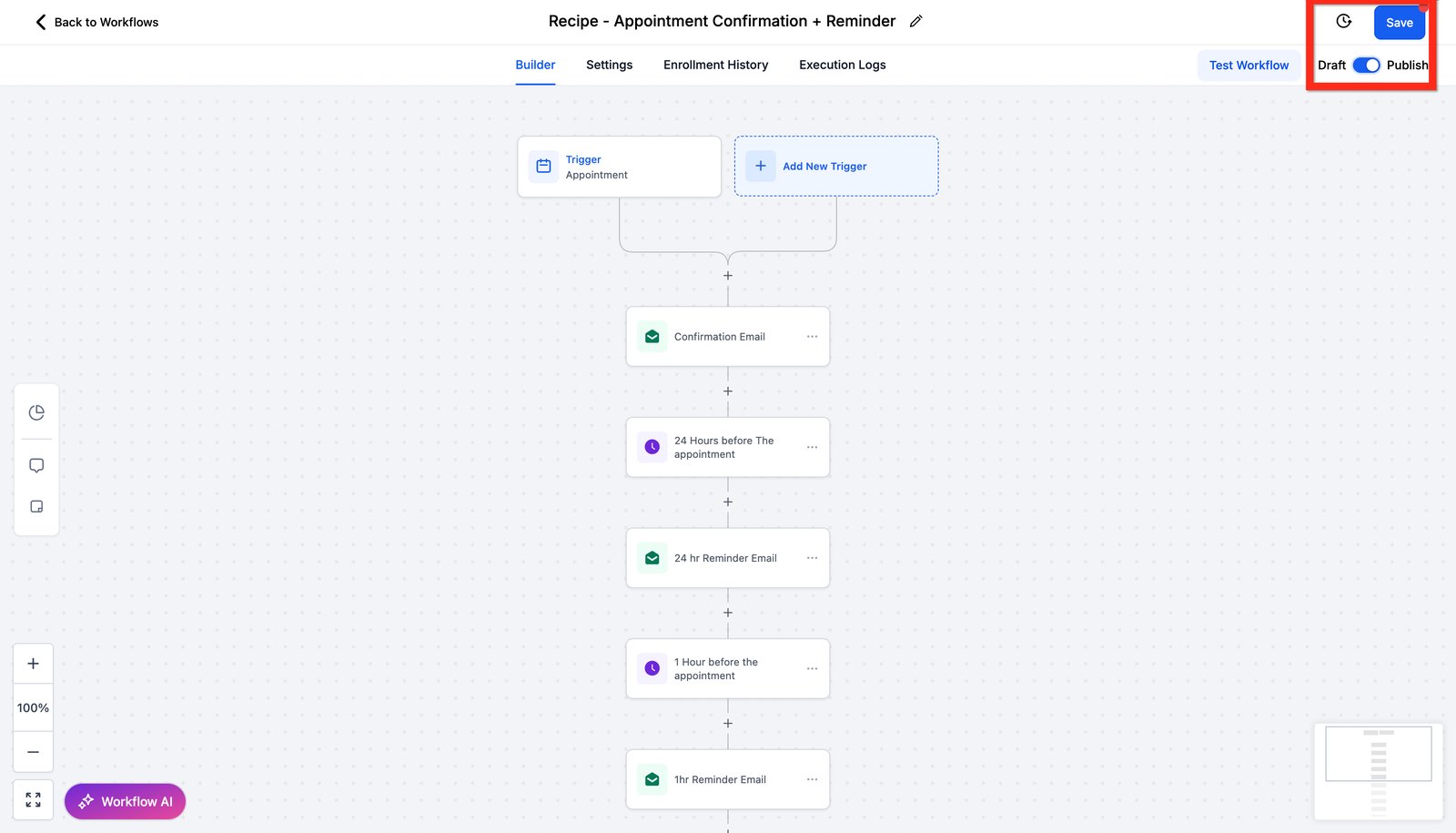
Hi baddie! I'm Hazel. Every booking needs a confirmation, a reminder and the deal moved on the board. Start with Add New Trigger and pick Customer Booked Appointment. Filter it to the right calendar, so other bookings don't start it. For the reminder, wait until 24 hours before the appointment time. Count back from the appointment, not forward from the booking. Write the email with merge fields, like the contact's first name and the appointment date. They fill in automatically for each person. Send a test mail before you save. A full sequence: confirmation, then a 24-hour reminder, then a 1-hour reminder. Use the workflow or the calendar's own reminders, never both. Then Save and Publish. Test with a booking a little more than 24 hours ahead. Read the lesson below, then try the practice.
Hi baddie! Si Hazel 'to. Bawat booking kailangan ng confirmation, reminder at paglipat ng deal sa board. Mag-start sa Add New Trigger at piliin ang Customer Booked Appointment. I-filter sa tamang calendar, para hindi ito ma-start ng ibang bookings. Para sa reminder, maghintay hanggang 24 hours bago ang appointment time. Bilangin pabalik mula sa appointment, hindi pasulong mula sa booking. Isulat ang email gamit ang merge fields, tulad ng first name ng contact at appointment date. Kusa silang napupunan para sa bawat tao. Mag-send ng test mail bago i-save. Isang buong sequence: confirmation, tapos 24-hour reminder, tapos 1-hour reminder. Workflow o sariling reminders ng calendar, isa lang, huwag pareho. Then Save at Publish. I-test gamit ang booking na medyo lampas 24 hours ahead. Basahin ang lesson sa baba, tapos subukan ang practice.
What you'll learn
- Trigger a workflow from an appointment booking
- Send a confirmation with the meeting link, the time, and cancel and reschedule links
- Notify the team member with an internal notification, and move the deal to Booked Call
- Move no-shows to their own stage with a second workflow
- Know how a 24-hour reminder works, and why it counts back from the appointment
- Mag-trigger ng workflow mula sa appointment booking
- Magpadala ng confirmation na may meeting link, oras, at cancel at reschedule links
- I-notify ang team member gamit ang internal notification, at ilipat ang deal sa Booked Call
- Ilipat ang no-shows sa sarili nilang stage gamit ang pangalawang workflow
- Malaman kung paano gumagana ang 24-hour reminder, at bakit nagbibilang ito pabalik mula sa appointment
New words in this lesson
- Appointment trigger
- A workflow trigger that starts when an appointment is booked or its status changes (confirmed, cancelled, no-show).
- Merge field
- A placeholder in a message, like {{contact.first_name}}, replaced with the contact's real data when sent. Empty fields send as blanks.
- Wait step
- A workflow step that pauses a contact for a set time, until an event, or until a time relative to an appointment.
What a client actually asks
"When someone books, send them a proper confirmation with the meeting link and let me know straight away. And if they don't show up, I want them moved somewhere so we can win them back."
Ang tanong ng client
"Kapag may nag-book, padalhan sila ng maayos na confirmation na may meeting link at sabihan agad ako. At kung hindi sila sumipot, gusto kong mailipat sila sa isang lugar para mabawi namin sila."
Key concepts
Every booking needs the same things: a clear confirmation for the lead, a heads-up for the person they’re meeting, and the deal moved on the board. And when people don’t show up, the business needs to know. You’ll build those two workflows below.
The most requested follow-on is the 24-hour reminder, because people forget. The next three sections explain how it works. They’re read-only in the practice account; know them for client work.
“24 hours before” is not “24 hours after”
The obvious build is wrong:
Trigger: appointment booked → wait 24 hours → send reminder
If someone books on Monday for the following Monday, they get “see you tomorrow!” on Tuesday. The wait needs to count back from the appointment time, not forward from the booking.
GHL’s wait step has an option for exactly this: wait until a set amount of time before the appointment. To test one without waiting a day, book a test appointment a little more than 24 hours ahead and check in the workflow history that the contact is waiting at the right step.
Two edge cases worth handling
- Last-minute bookings. Someone books at 2pm for 5pm today. “24 hours before” was yesterday. Usually the right call is to skip the reminder — they just got a confirmation. Check how your wait step behaves when the target time has already passed, and test it.
- Cancellations and reschedules. If the appointment is cancelled, the reminder mustn’t go out. Before sending, check that the appointment is still confirmed (an If/Else on appointment status, or the workflow’s built-in handling — test it either way).
Workflow reminder or calendar setting?
Many calendars also have their own notification and reminder settings. Either approach can work. What doesn’t work is both at once, which sends two reminders. Pick one per calendar. The workflow approach gives you more control, which is why you turned the calendar’s own messages off in Lesson 18.
Step-by-step build
Workflow 1: Booked Call
Create a new workflow inside your folder and name it
Maria-Practice Booked Call-024.Add the trigger Customer booked appointment (search “appointment”), with a filter: In calendar →
Maria-Practice calendar-024.Send the confirmation email. Insert every field from the picker. It must include:
- the name of the team member they’re meeting: in the picker, Appointment → Assigned User → Full Name (you here, the business owner on a client account). Don’t use User → Name: that’s the contact’s owner, and it comes out blank for a new lead.
- the appointment’s start date and time
- the meeting link (the appointment’s meeting location)
- the cancel link and the reschedule link
Use your
Maria-Practice Calendar Name-024custom value in the subject, for example “Your First Consultation is booked”.Notify the team member. Add an internal notification of the email type. For To User Type, choose Particular user and pick yourself (on a client account, the business owner). Never choose “All users” in the shared practice account. Include the contact’s name, the appointment date and time and the meeting link. Subject idea:
New booking: {{contact.first_name}}.Move the deal. Add the create-or-update opportunity action: pipeline
Maria-Practice pipeline-024, stage Booked Call.Stop the nurture. Add the Remove from workflow action. It starts on “Current workflow”, which is wrong: change it to Another workflow, remove the Booked Call chip that appears, and choose
Maria-Practice Nurture-024. Someone who has booked shouldn’t get “have you booked yet?” emails.- Save and publish.
A good confirmation reads like a person wrote it:
Hi {{contact.first_name}}, your First Consultation with {{appointment.user.name}} is booked
for {{appointment.start_time}}.
Join here: {{appointment.meeting_location}}
Need to change it? Reschedule: {{appointment.reschedule_link}}
Can't make it? Cancel: {{appointment.cancellation_link}}
Merge field names vary between versions. Insert them from the builder’s field picker rather than copying these.
Workflow 2: No Show
Create a new workflow inside your folder and name it
Maria-Practice No Show-024.Add the Appointment status trigger. Leave the “Event type: Normal” filter it adds, and add two more: Appointment status is → No-show, and In calendar →
Maria-Practice calendar-024.Check re-entry is on in the workflow’s Settings (it usually is already). Someone can miss more than one appointment.
Move the deal with the create-or-update opportunity action: pipeline
Maria-Practice pipeline-024(yours, not another student’s), stage No-show Nurture.Save and publish. On a client account, this is where the win-back messages would go. The No-Show Problem scenario in the Build Lab walks through them.
Check what you built
Use your funnel from start to finish: submit the form on the Home page as your test contact, and book a slot at least 2 days ahead. Then check:
- the confirmation email shows your name, the date and time, a meeting link, and cancel and reschedule links that work
- the internal notification email arrives in your inbox with the contact’s name, the date and time and the meeting link
- the opportunity is in Booked Call, and the nurture emails stopped
- now open the appointment in your calendar and mark it as a no-show: the opportunity moves to No-show Nurture
Finally, use the cancel link on any test bookings you don’t need, so your calendar is clean.
Mga pangunahing konsepto
Pare-pareho ang kailangan ng bawat booking: malinaw na confirmation para sa lead, abiso para sa taong kikitain nila, at paglipat ng deal sa board. At kapag hindi sumipot ang mga tao, kailangang malaman ng business. Ibu-build mo ang dalawang workflow na ‘yan sa ibaba.
Ang pinakamadalas na kasunod na hinihingi ay ang 24-hour reminder, dahil nakakalimot ang mga tao. Ipinapaliwanag ng susunod na tatlong section kung paano ito gumagana. Read-only ang mga ito sa practice account; aralin para sa client work.
Ang “24 oras bago” ay hindi “24 oras pagkatapos”
Mali ang halatang build:
Trigger: appointment booked → wait 24 hours → send reminder
Kung may nag-book noong Monday para sa susunod na Monday, makakatanggap sila ng “see you tomorrow!” sa Tuesday. Dapat magbilang ang wait pabalik mula sa oras ng appointment, hindi pasulong mula sa booking.
May option ang wait step ng GHL para mismo dito: maghintay hanggang sa takdang oras bago ang appointment. Para ma-test ito nang hindi naghihintay ng isang araw, mag-book ng test appointment nang lampas lang nang kaunti sa 24 oras pauna at i-check sa workflow history na naghihintay ang contact sa tamang step.
Dalawang edge case na dapat i-handle
- Last-minute bookings. May nag-book nang 2pm para sa 5pm ngayong araw. Kahapon pa ang “24 hours before”. Kadalasan, tamang laktawan ang reminder — kakakuha lang nila ng confirmation. I-check kung ano ang ginagawa ng wait step mo kapag lumipas na ang target time, at i-test ito.
- Cancellations at reschedules. Kapag na-cancel ang appointment, hindi dapat lumabas ang reminder. Bago magpadala, i-check na confirmed pa ang appointment (If/Else sa appointment status, o ang built-in handling ng workflow — i-test alinman dito).
Workflow reminder ba o calendar setting?
Maraming calendars ang may sariling notification at reminder settings. Pwedeng gumana ang alinman. Ang hindi gumagana ay pareho nang sabay, na nagpapadala ng dalawang reminder. Isa lang bawat calendar. Mas maraming kontrol ang workflow approach at ‘yan ang ibu-build ng lesson na ‘to.
Pag-build, step by step
Workflow 1: ang Booked Call mo
Gumawa ng bagong workflow sa loob ng folder mo at pangalanan itong
Maria-Practice Booked Call-024.Idagdag ang trigger na Customer booked appointment (i-search ang “appointment”), na may filter: In calendar →
Maria-Practice calendar-024.Ipadala ang confirmation email. I-insert ang bawat field mula sa picker. Dapat kasama ang:
- pangalan ng team member na kikitain nila: sa picker, Appointment → Assigned User → Full Name (ikaw dito, ang business owner sa client account). Huwag gamitin ang User → Name: owner ‘yon ng contact, at blangko ito para sa bagong lead.
- start date at time ng appointment
- meeting link (ang meeting location ng appointment)
- cancel link at reschedule link
Gamitin ang custom value mo na
Maria-Practice Calendar Name-024sa subject, halimbawa “Your First Consultation is booked”.I-notify ang team member. Magdagdag ng internal notification na email ang type. Sa To User Type, piliin ang Particular user at ang sarili mo (sa client account, ang business owner). Huwag piliin ang “All users” sa shared practice account. Isama ang pangalan ng contact, ang date at time ng appointment at ang meeting link. Halimbawang subject:
New booking: {{contact.first_name}}.Ilipat ang deal. Idagdag ang create-or-update opportunity action: pipeline
Maria-Practice pipeline-024, stage Booked Call.Itigil ang nurture. Idagdag ang Remove from workflow action. “Current workflow” ang simula nito, na mali: palitan ng Another workflow, tanggalin ang Booked Call chip na lalabas, at piliin ang
Maria-Practice Nurture-024. Ang nakapag-book na ay hindi na dapat makatanggap ng “nag-book ka na ba?” na emails.- I-save at i-publish.
Ang magandang confirmation ay parang tao ang sumulat:
Hi {{contact.first_name}}, your First Consultation with {{appointment.user.name}} is booked
for {{appointment.start_time}}.
Join here: {{appointment.meeting_location}}
Need to change it? Reschedule: {{appointment.reschedule_link}}
Can't make it? Cancel: {{appointment.cancellation_link}}
Nag-iiba ang pangalan ng merge fields sa bawat version. I-insert ang mga ito mula sa field picker ng builder sa halip na kopyahin ang mga ito.
Workflow 2: ang No Show mo
Gumawa ng bagong workflow sa loob ng folder mo at pangalanan itong
Maria-Practice No Show-024.Idagdag ang Appointment status trigger. Iwan ang “Event type: Normal” na filter na kusang nadadagdag, at magdagdag ng dalawa pa: Appointment status is → No-show, at In calendar →
Maria-Practice calendar-024.I-check na naka-on ang re-entry sa Settings ng workflow (kadalasan naka-on na). Pwedeng hindi sumipot ang isang tao nang higit sa isang beses.
Ilipat ang deal gamit ang create-or-update opportunity action: pipeline
Maria-Practice pipeline-024(sa’yo, hindi sa ibang estudyante), stage No-show Nurture.I-save at i-publish. Sa client account, dito ilalagay ang mga win-back message. Ipinapakita ng No-Show Problem scenario sa Build Lab ang mga ito.
I-check ang ginawa mo
Gamitin ang funnel mo mula umpisa hanggang dulo: i-submit ang form sa Home page bilang test contact mo, at mag-book ng slot nang hindi bababa sa 2 araw pauna. Tapos i-check:
- makikita sa confirmation email ang pangalan mo, ang date at time, meeting link, at gumaganang cancel at reschedule links
- dumating sa inbox mo ang internal notification email, kasama ang pangalan ng contact, ang date at time at ang meeting link
- nasa Booked Call ang opportunity, at tumigil ang nurture emails
- ngayon buksan ang appointment sa calendar mo at i-mark ito bilang no-show: lilipat ang opportunity sa No-show Nurture
Panghuli, gamitin ang cancel link sa mga test booking na hindi mo na kailangan, para malinis ang calendar mo.
Common mistakes
- Tina-type nang mano-mano ang merge fields
- Ang typo gaya ng {{appointment.start}} ay nagpapadala ng blangko. I-insert ang bawat field (oras, meeting link, cancel at reschedule links) mula sa picker ng builder.
- Naghihintay ng 24 oras pagkatapos ng booking sa halip na hanggang 24 oras bago ang appointment
- Ang taong nag-book isang linggo bago ay mare-remind anim na araw nang maaga. Gamitin ang wait option na nagbibilang pabalik mula sa oras ng appointment.
- Hindi hina-handle ang last-minute bookings
- Kung may nag-book 3 oras bago, nakalipas na ang "24 hours before". Magdesisyon kung ano ang dapat mangyari — kadalasan laktawan ang reminder, dahil bago pa lang ang booking confirmation.
- Nire-remind ang mga tao tungkol sa cancelled na appointments
- Kapag na-cancel o na-reschedule ang appointment, hindi dapat lumabas ang lumang reminder. I-check ang appointment status bago magpadala, at mag-test ng cancellation.
- Gumagawa ng workflow reminder AT iniiwang naka-on ang calendar reminders
- Maraming calendars ang may sariling reminder settings. Kapag parehong naka-on, dalawang reminder ang natatanggap ng mga tao. Isang paraan lang bawat calendar.
- Waiting 24 hours after booking instead of until 24 hours before the appointment
- Someone who books a week ahead would be reminded six days early. Use the wait option that counts back from the appointment time.
- Not handling last-minute bookings
- If someone books 3 hours ahead, "24 hours before" is already in the past. Decide what should happen — usually skip the reminder, since the booking confirmation is fresh.
- Reminding people about cancelled appointments
- If an appointment is cancelled or rescheduled, the old reminder shouldn't go out. Check the appointment status before sending, and test a cancellation.
- Typing merge fields by hand
- A typo like {{appointment.start}} sends a blank. Insert every field (time, meeting link, cancel and reschedule links) from the builder's picker.
- Building a workflow reminder AND leaving calendar reminders on
- Many calendars have their own reminder settings. If both are on, people get two reminders. Pick one approach per calendar.
Practice
🔒 Practice opens once you've completed every lesson in Learn.
Ready for a harder one? Try a real client scenario
Knowledge check
5 quick questions. You'll see why each answer is right or wrong as you go, and you can retake it as often as you like.