Module 3 · Lesson 2 of 2
Build a Two-Page Lead Capture Funnel Gumawa ng Two-Page Lead Capture Funnel
Awaiting hands-on verification. The concepts here are sound, but the click-by-click steps have not yet been re-walked in a live GoHighLevel sub-account. GoHighLevel changes often, so a menu name or screen may differ from what you see. Flagged rather than presented as verified.
Before this: Forms and Field Mapping
Your knowledge-check score on Forms and Field Mapping was under 60%. Worth a quick re-read before this one — it builds on it.
On this page

In this lesson
Build a Two-Page Lead Capture Funnel
Sa lesson na ’to
Gumawa ng Two-Page Lead Capture Funnel

Read the transcript
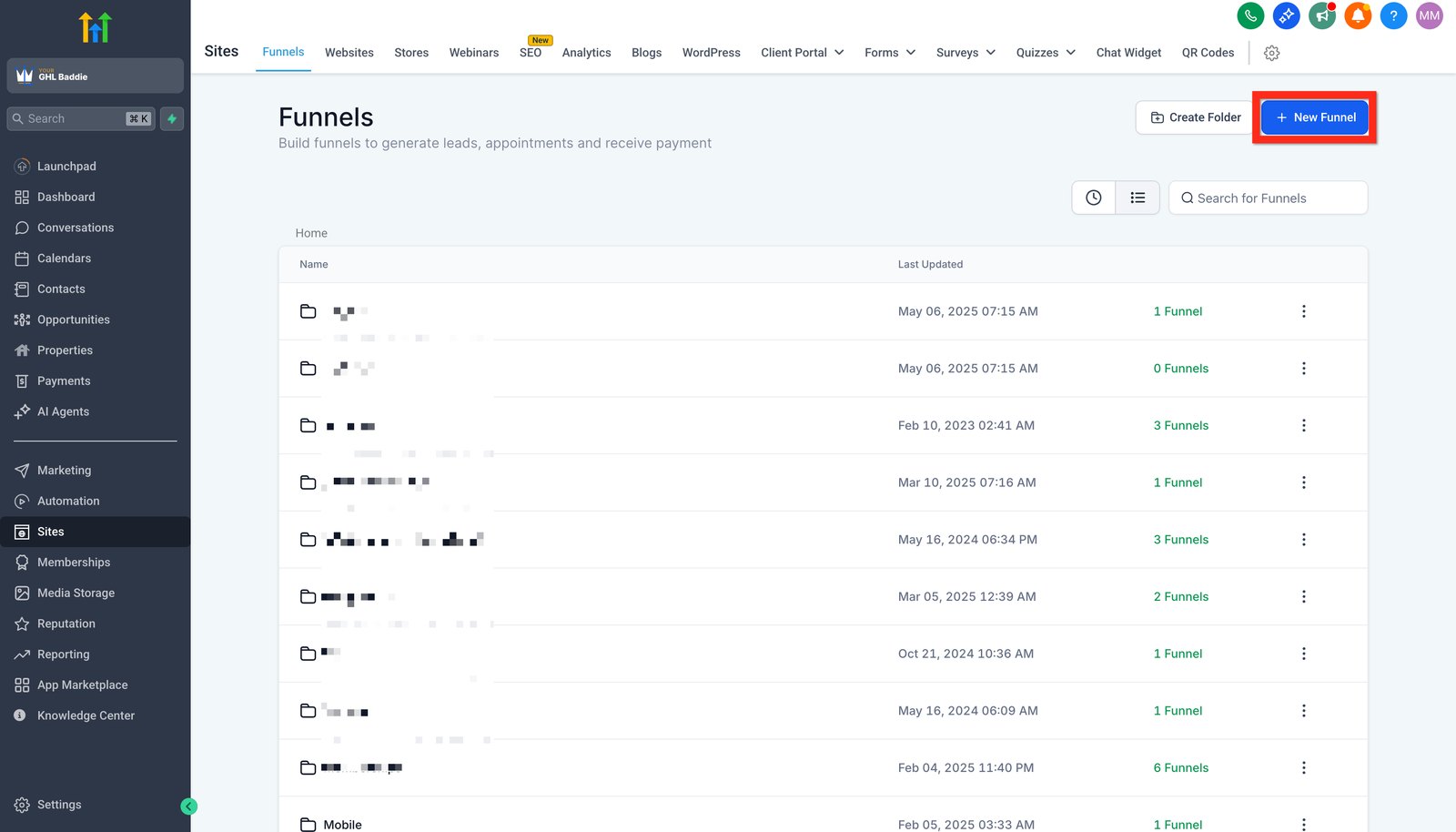
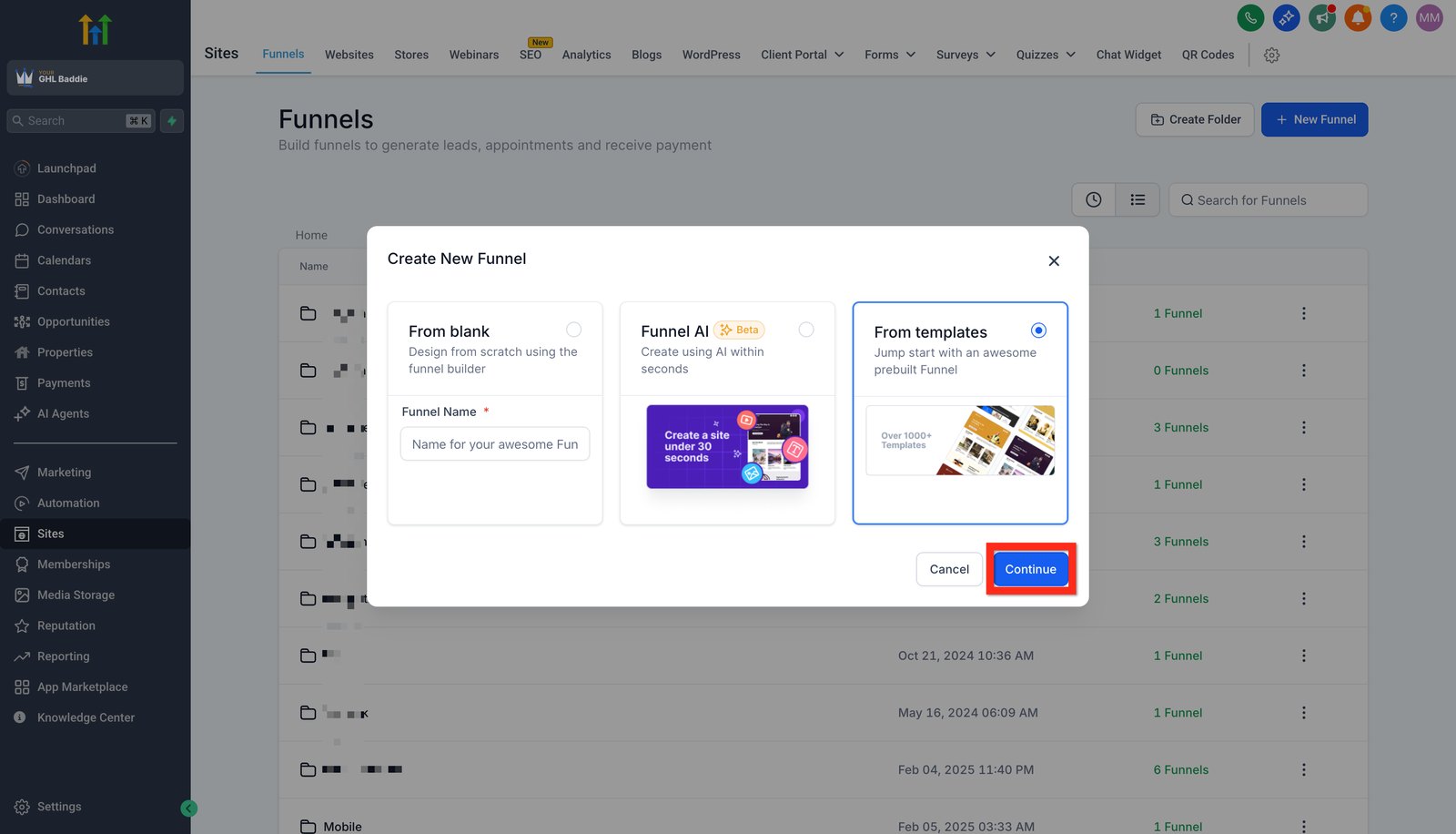
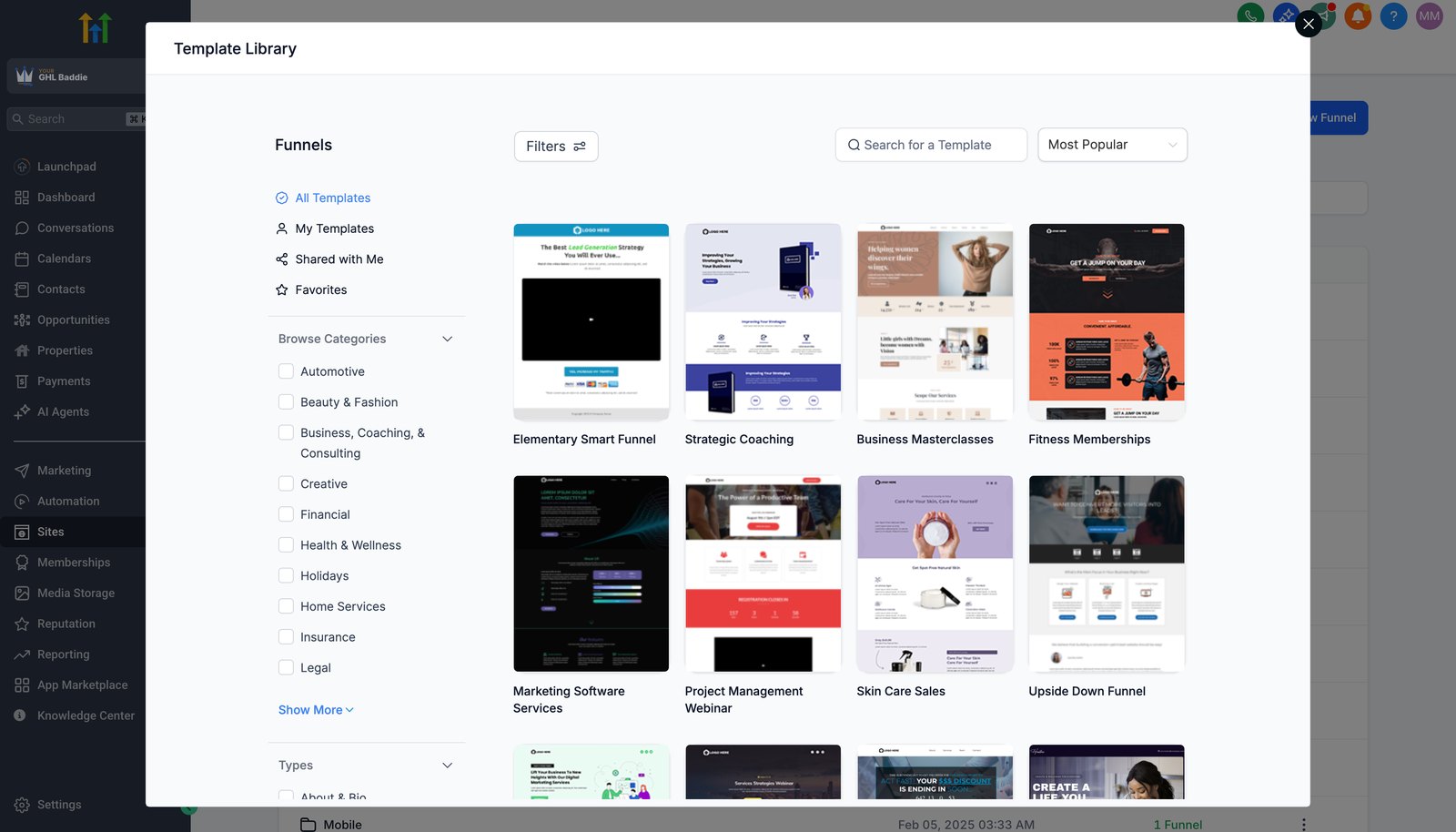
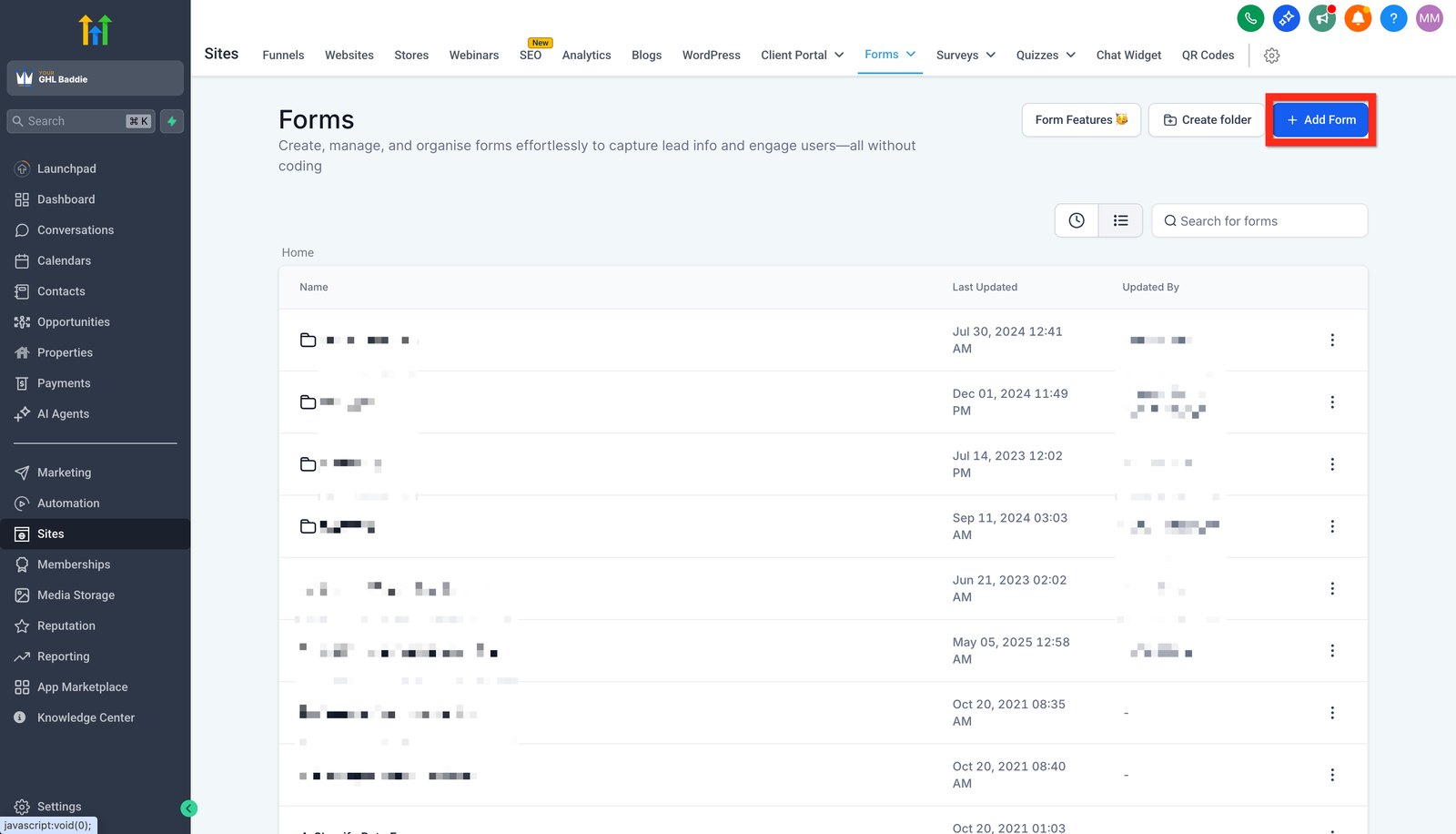
Hi baddie! I'm Hazel. One page, one form, one action. Let's build a lead capture funnel. Go to Sites, then Funnels. Click New Funnel. Funnels move people toward one action. Websites are for browsing. You can start from blank, use Funnel AI, or pick a template. While you're learning, the lesson builds from blank so you see every part. The Template Library has ready-made funnels by industry. Templates save time on client work. Just keep the page focused: no menu, no links away. Your form lives in Sites, Forms. Build it there first. Then drop that form onto your page. Don't build a new form inside the page. Test with the preview link before you promise a launch date. Read the lesson below, then try the practice.
Hi baddie! Si Hazel 'to. Isang page, isang form, isang action. Gawa tayo ng lead capture funnel. Go to Sites, then Funnels. I-click ang New Funnel. Ang funnels ay para sa iisang action. Ang websites ay para mag-browse. Pwede kang mag-start from blank, gumamit ng Funnel AI, o pumili ng template. Habang nag-aaral ka, from blank ang build sa lesson para makita mo ang bawat parte. Sa Template Library may ready-made funnels by industry. Nakaka-save ng time ang templates sa client work. Basta focused ang page: walang menu, walang links palabas. Nasa Sites, Forms ang form mo. Doon mo muna siya gawin. Tapos ilagay ang form na 'yon sa page mo. Huwag gumawa ng bagong form sa loob ng page. I-test gamit ang preview link bago ka mag-promise ng launch date. Basahin ang lesson sa baba, tapos subukan ang practice.
What you'll learn
- Know the difference between a funnel and a website in GHL
- Build a home page with your form and a booking page it redirects to
- Add a chat widget to one page only
- Save the booking page link as a custom value
- Test the whole path from page view to contact record
- Malaman ang pagkakaiba ng funnel at website sa GHL
- Gumawa ng home page na may form mo at booking page na pupuntahan nito pagka-submit
- Maglagay ng chat widget sa iisang page lang
- I-save ang link ng booking page bilang custom value
- I-test ang buong daan mula page view hanggang contact record
New words in this lesson
What a client actually asks
"We want a simple page where people leave their details, and then go straight to a page where they can book a consultation. A chat box would be nice too."
Ang tanong ng client
"Gusto namin ng simpleng page kung saan iiwan ng mga tao ang details nila, tapos diretso sila sa page kung saan pwede silang mag-book ng consultation. Maganda rin kung may chat box."
Key concepts
Funnels vs websites
GHL has two page builders that look almost the same:
- Funnels are a series of steps that move someone toward one action: sign up, book, buy. Each step is a page. A one-step funnel is just a single landing page.
- Websites are a set of pages with navigation, for people to browse.
The client at the top of the page is running an ad with one goal: get people to sign up for a check-up. That’s a funnel — one page, one form, one action. You’ll build websites less often as a VA, and usually for a different reason.
What a good campaign page needs
Keep it simple. A beginner’s lead capture page needs five things, top to bottom:
- A headline that matches the ad — “Free aircon check-up this November”
- One or two lines on who it’s for and what they get
- The form you built in Lesson 8
- A reason to trust it — the business name, area served, a real detail
- Nothing else to click — no menu, no links away
Domains, briefly
A published page needs an address. GHL gives every funnel a preview link you can
use for testing. For the real campaign, the client usually wants it on their own
domain (like promo.coolaircebu.com). Connecting a domain involves DNS settings
on the client’s side. As a beginner, use the preview link to test, and confirm
with the client who manages their domain before launch day.
Connecting a domain happens in Settings → Domains, which needs admin access. In the practice account you’re a user, so this part is read-only: use your funnel’s preview link instead.
Step-by-step build
Create a new funnel from scratch (not a template, while you’re learning) and name it
Maria-Practice funnel-024.Add two steps with Add new step: Home and Booking. The box only asks for a name.
Give each step its own path. Click a step, open its Publishing tab, change the Step url, and click Update step. Everyone shares one practice domain, so paths must be unique: use
/maria-024-homeand/maria-024-booking(your name and ID), not a plain/home. GHL may add a few numbers to the end, like/maria-024-booking-992002. That’s fine. From now on, always copy the link shown at the top of the step’s Overview tab, never type it from memory.Pick the domain. In the funnel’s Settings tab, choose the practice domain in Domain and save. Without it your pages have no live link.
Edit the Home page. Add a headline, one or two lines of text, and a form element. Choose your form,
Maria-Practice form-024. Don’t build a new form inside the page.Edit the Booking page. Add a headline like “Pick a time for your First Consultation”. Leave space under it: you’ll add the calendar widget in Lesson 18, after you build the calendar.
Save both pages and copy the Booking page’s live link from the top of the Booking step’s Overview tab.
Make the form redirect. Open your form, set the on-submit action to redirect / open URL, paste the Booking page link, and save the form.
Create the chat widget. In Sites → Chat Widget, click + New and choose SMS / Email chat. Click the pencil next to the name at the top, rename it
Maria-Practice chat widget-024, keep the default settings, and click Save. It doesn’t need a workflow.Add the chat widget to one page only, Home or Booking, not both. In the widget, click Get code and copy it. Open that page in the page builder, click the </> Tracking Code icon in the top toolbar, choose Footer Tracking, paste the code and click Save. Then save the page and click Publish.
Save the booking link as a custom value. Open Settings → Custom Values, add a new one named
Maria-Practice Booking URL-024, and paste the Booking page link as its value. Your nurture emails in Module 5 will use it. Custom values are shared by the whole account, so only ever touch your own.
Check what you built
On your phone, not your laptop: open the Home page’s live link, fill in the form as your test contact, and submit. Then check:
- you landed on the Booking page straight after submitting
- the chat widget shows on the one page you chose, and not on the other
- your test contact’s record shows the new submission
- your custom value holds the Booking page link
That chain (page → form → redirect → contact) is exactly what your workflows in Module 5 will hook into.
Mga pangunahing konsepto
Funnel ba o website?
May dalawang page builder ang GHL na halos magkamukha:
- Ang Funnels ay serye ng steps na naglalapit sa tao sa isang action: mag-sign up, mag-book, bumili. Bawat step ay isang page. Ang one-step funnel ay iisang landing page lang.
- Ang Websites ay set ng pages na may navigation, para i-browse ng mga tao.
Isang goal lang ang ad ng client sa itaas: mapa-sign up ang mga tao sa check-up. Funnel ‘yan — isang page, isang form, isang action. Mas madalang kang gagawa ng websites bilang VA, at kadalasan para sa ibang dahilan.
Ano ang kailangan ng magandang campaign page
Panatilihing simple. Limang bagay ang kailangan ng lead capture page ng beginner, mula taas pababa:
- Headline na tugma sa ad — “Libreng aircon check-up ngayong November”
- Isa o dalawang linya kung para kanino at ano ang makukuha nila
- Ang form na ginawa mo sa Lesson 8
- Dahilan para pagkatiwalaan — pangalan ng business, area na sineserbisyuhan, totoong detalye
- Wala nang ibang pipindutin — walang menu, walang links palabas
Domains, sa madaling salita
Kailangan ng address ang published page. Binibigyan ng GHL ang bawat funnel ng
preview link na pwede mong gamitin sa testing. Para sa totoong campaign, kadalasan
gusto ng client na nasa sarili nilang domain ito (gaya ng
promo.coolaircebu.com). Ang pagkonekta ng domain ay may kinalaman sa DNS
settings sa side ng client. Bilang beginner, gamitin ang preview link sa testing,
at kumpirmahin sa client kung sino ang nagma-manage ng domain nila bago ang launch day.
Ang pagkonekta ng domain ay ginagawa sa Settings → Domains, na kailangan ng admin access. User ka sa practice account, kaya read-only ang bahaging ito: gamitin ang preview link ng funnel mo.
Pag-build, step by step
Gumawa ng bagong funnel mula sa scratch (hindi template, habang nag-aaral ka pa) at pangalanan itong
Maria-Practice funnel-024.Magdagdag ng dalawang step gamit ang Add new step: Home at Booking. Pangalan lang ang hinihingi ng box.
Bigyan ng sariling path ang bawat step. I-click ang step, buksan ang Publishing tab nito, palitan ang Step url, at i-click ang Update step. Iisang practice domain ang gamit ng lahat, kaya dapat unique ang path: gamitin ang
/maria-024-homeat/maria-024-booking(pangalan at ID mo), hindi ang simpleng/home. Baka magdagdag ang GHL ng ilang numero sa dulo, gaya ng/maria-024-booking-992002. Okay lang ‘yan. Mula ngayon, laging kopyahin ang link na nasa taas ng Overview tab ng step, huwag i-type mula sa alaala.Piliin ang domain. Sa Settings tab ng funnel, piliin ang practice domain sa Domain at i-save. Kung wala ito, walang live link ang pages mo.
I-edit ang Home page. Magdagdag ng headline, isa o dalawang linya ng text, at form element. Piliin ang form mo,
Maria-Practice form-024. Huwag gumawa ng bagong form sa loob ng page.I-edit ang Booking page. Magdagdag ng headline gaya ng “Pumili ng oras para sa First Consultation mo”. Mag-iwan ng espasyo sa ilalim: idadagdag mo ang calendar widget sa Lesson 18, pagkatapos mong i-build ang calendar.
I-save ang dalawang page at kopyahin ang live link ng Booking page mula sa taas ng Overview tab ng Booking step.
Pa-redirect-in ang form. Buksan ang form mo, i-set ang on-submit action sa redirect / open URL, i-paste ang link ng Booking page, at i-save ang form.
Gumawa ng chat widget. Sa Sites → Chat Widget, i-click ang + New at piliin ang SMS / Email chat. I-click ang lapis sa tabi ng pangalan sa taas, palitan ito ng
Maria-Practice chat widget-024, iwan ang default settings, at i-click ang Save. Hindi nito kailangan ng workflow.Ilagay ang chat widget sa iisang page lang, Home o Booking, hindi pareho. Sa widget, i-click ang Get code at kopyahin ito. Buksan ang page na ‘yon sa page builder, i-click ang </> Tracking Code icon sa toolbar sa taas, piliin ang Footer Tracking, i-paste ang code at i-click ang Save. Tapos i-save ang page at i-click ang Publish.
I-save ang booking link bilang custom value. Buksan ang Settings → Custom Values, magdagdag ng bago na
Maria-Practice Booking URL-024, at i-paste ang link ng Booking page bilang value. Gagamitin ito ng nurture emails mo sa Module 5. Shared ng buong account ang custom values, kaya sarili mo lang ang galawin.
I-check ang ginawa mo
Sa phone mo, hindi sa laptop: buksan ang live link ng Home page, punan ang form bilang test contact mo, at i-submit. Tapos i-check:
- napunta ka agad sa Booking page pagka-submit
- lumalabas ang chat widget sa iisang page na pinili mo, at wala sa isa
- makikita sa record ng test contact mo ang bagong submission
- nasa custom value mo ang link ng Booking page
Ang kadenang ‘yan (page → form → redirect → contact) mismo ang kakabitan ng mga workflow mo sa Module 5.
Common mistakes
- Gumagawa ng buong website kahit isang page lang ang kailangan ng client
- Ang ad campaign ay nangangailangan ng isang focused na page na may isang action. Mas mabilis gawin ang funnel step at mas maganda ang conversion kaysa sa multi-page site.
- Naglalagay ng navigation at links sa campaign page
- Bawat dagdag na link ay paraan para umalis nang hindi nagsa-sign up. Kadalasan, isang goal at isang button lang ang campaign pages.
- Sa editor nagte-test sa halip na sa live page
- Hindi ang editor preview ang page na nakikita ng leads mo. Buksan ang published URL sa phone mo at doon i-submit ang form.
- Nagpa-publish sa domain na hindi maayos ang pagkakakonekta
- Kung hindi naka-set up ang domain ng client, walang makakapag-load ng page. Gamitin ang default preview link sa testing at kumpirmahin ang domain bago mag-launch.
- Building a whole website when the client needs one page
- An ad campaign needs one focused page with one action. A funnel step is faster to build and converts better than a multi-page site.
- Adding navigation and links to a campaign page
- Every extra link is a way to leave without signing up. Campaign pages usually have one goal and one button.
- Testing in the editor instead of on the live page
- The editor preview isn't the page your leads see. Open the published URL on your phone and submit the form there.
- Publishing on a domain that isn't connected properly
- If the client's domain isn't set up, the page won't load for anyone. Use the default preview link for testing and confirm the domain before launch.
Knowledge check
5 quick questions. You'll see why each answer is right or wrong as you go, and you can retake it as often as you like.