Module 2 · Lesson 4 of 4
Smart Lists: Finding the Right Contacts Smart Lists: Paghahanap ng Tamang Contacts
Awaiting hands-on verification. The concepts here are sound, but the click-by-click steps have not yet been re-walked in a live GoHighLevel sub-account. GoHighLevel changes often, so a menu name or screen may differ from what you see. Flagged rather than presented as verified.
Before this: Tags (and When Not to Use Them)
Your knowledge-check score on Tags (and When Not to Use Them) was under 60%. Worth a quick re-read before this one — it builds on it.
On this page

In this lesson
Smart Lists: Finding the Right Contacts
Sa lesson na ’to
Smart Lists: Paghahanap ng Tamang Contacts

Read the transcript
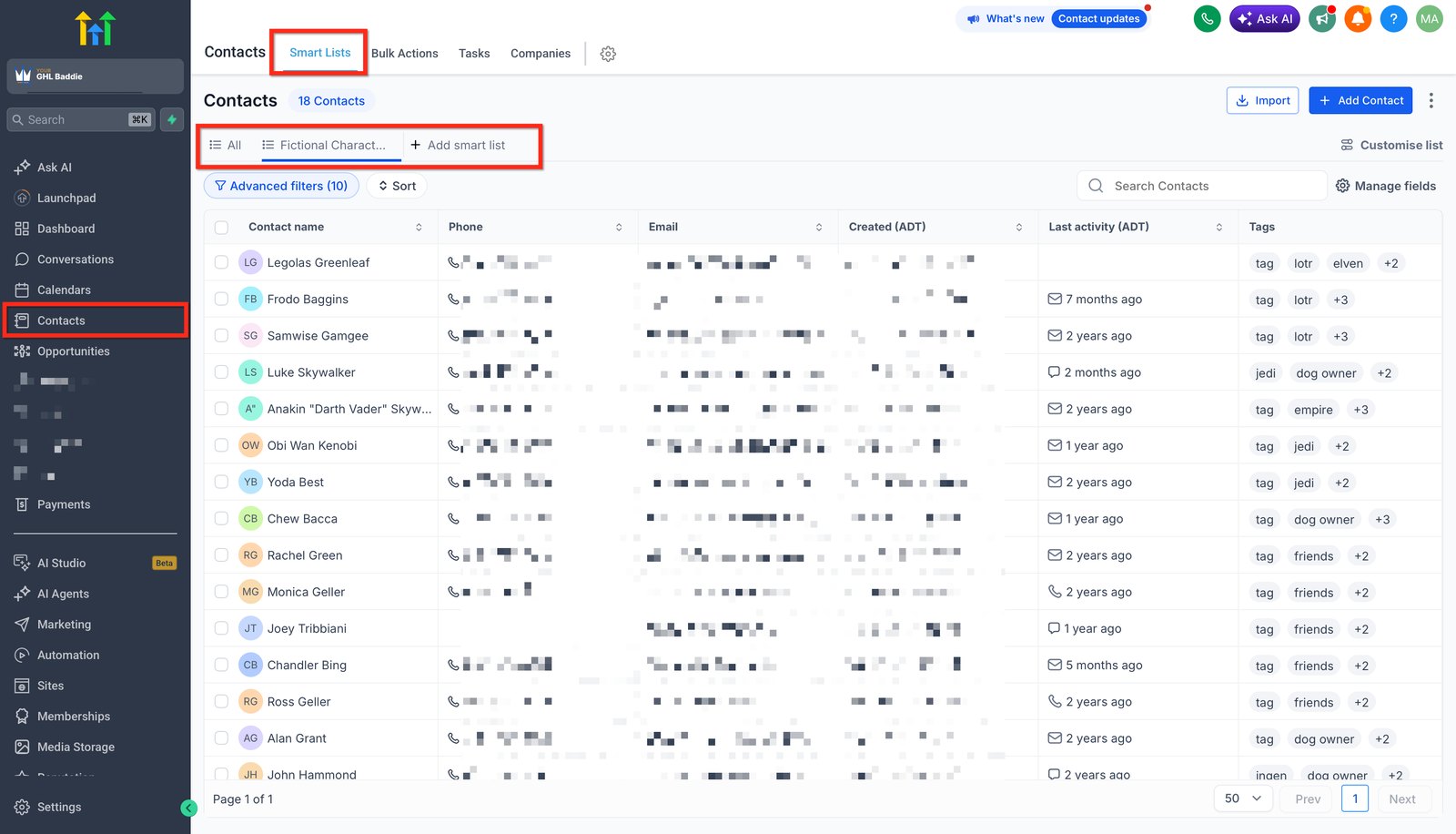
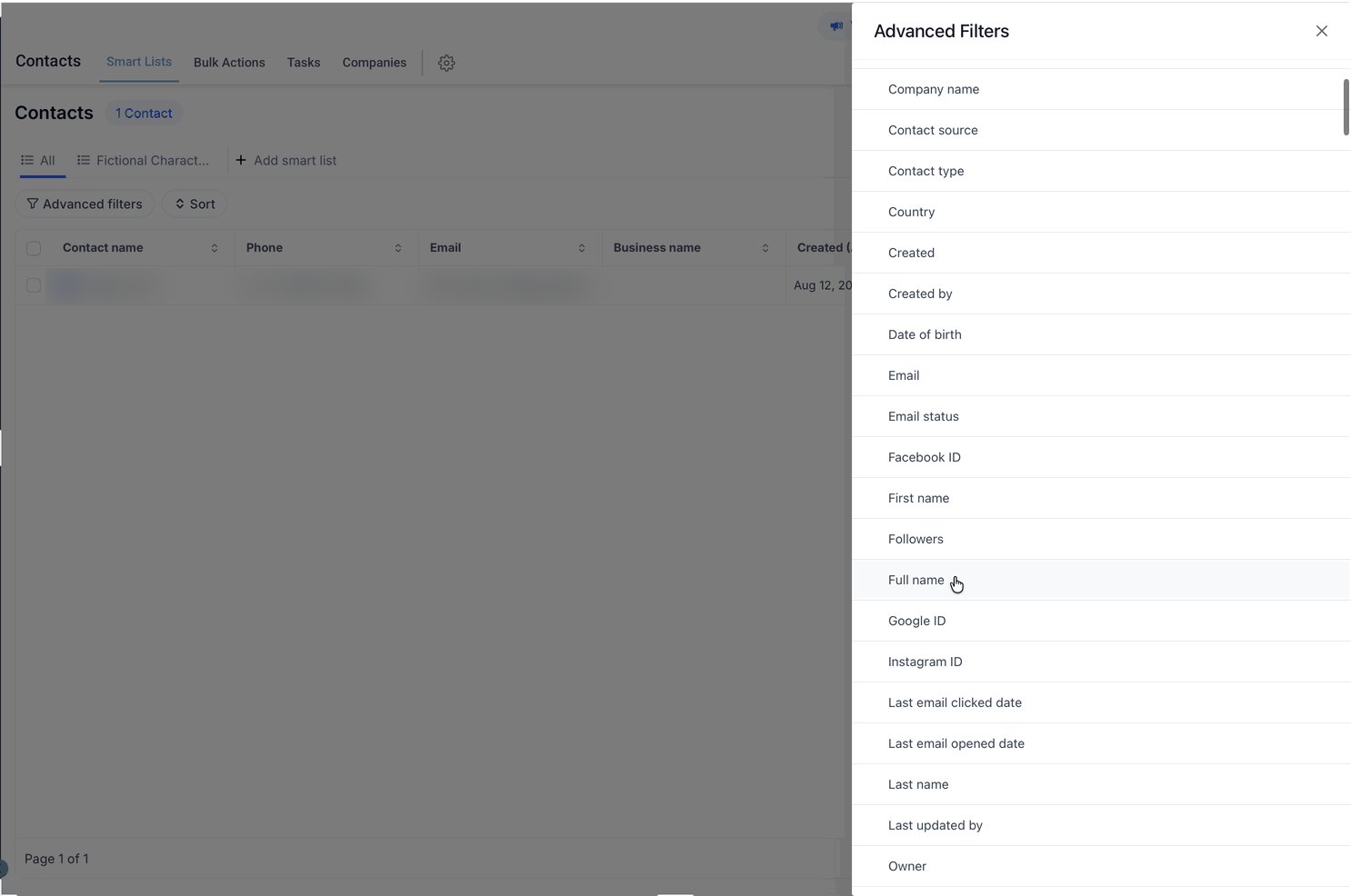
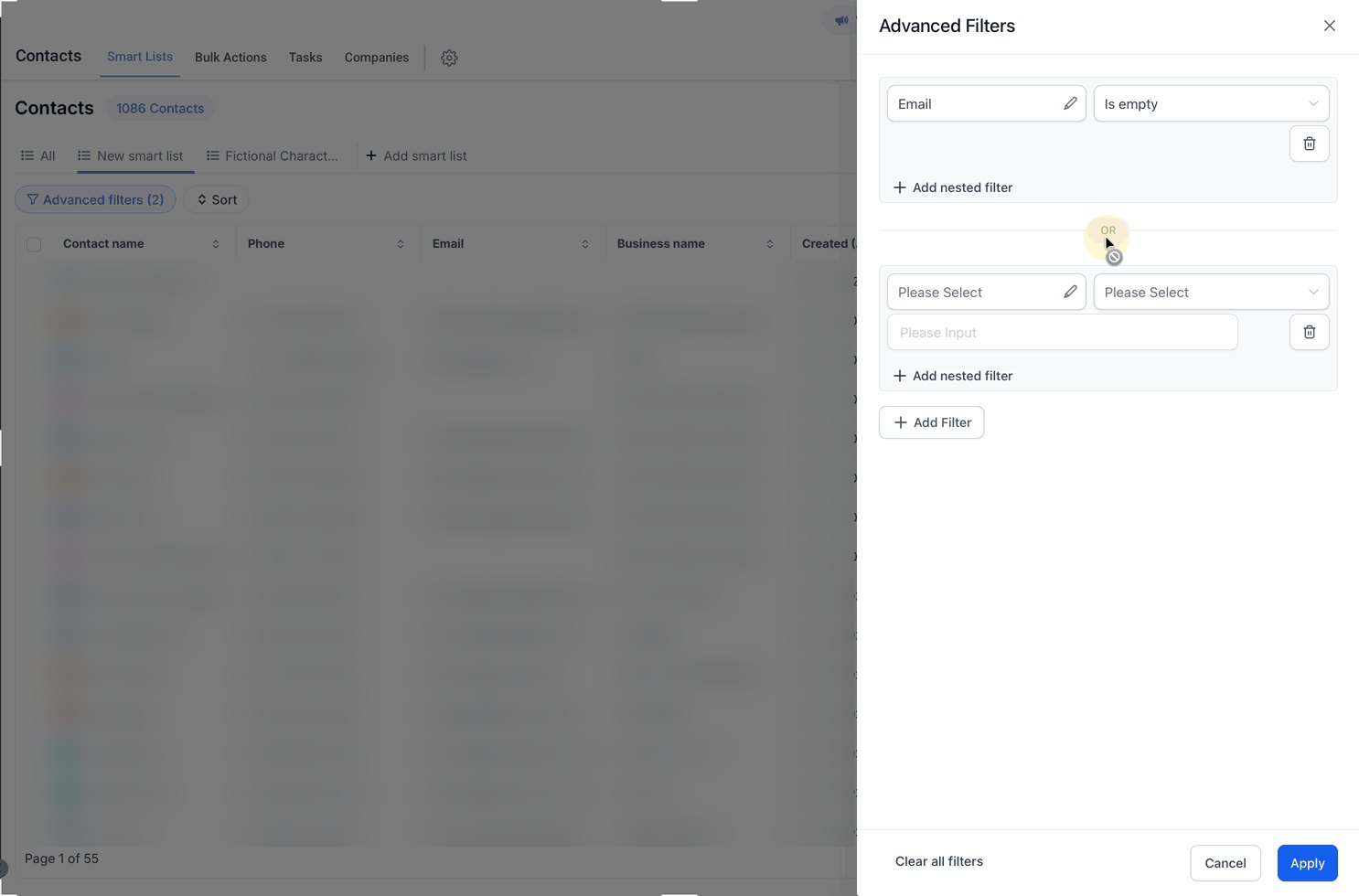
Hi baddie! I'm Hazel. A smart list is a saved question about your contacts. Let's build one. Open Contacts. Smart Lists is the tab at the top, and your saved lists sit above the table. Click Add smart list to save a new view. Advanced Filters shows every field you can filter by. Turn the request into conditions first, like created in March and not tagged customer. Each rule is a field and a condition, like Email is empty. Add more with Add Filter. Click Apply, check a few contacts really match, then save the list with a clear name. A smart list updates itself. New matches appear, and old ones drop off. Read the lesson below, then take the quick check.
Hi baddie! Si Hazel 'to. Ang smart list ay naka-save na tanong tungkol sa contacts mo. Gawa tayo ng isa. Buksan ang Contacts. Nasa taas ang Smart Lists tab, at nasa ibabaw ng table ang saved lists mo. I-click ang Add smart list para mag-save ng bagong view. Sa Advanced Filters makikita ang lahat ng fields na pwedeng i-filter. Gawin munang conditions ang request, tulad ng created in March at walang customer tag. Bawat rule ay field at condition, tulad ng Email is empty. Mag-add pa gamit ang Add Filter. I-click ang Apply, i-check kung tugma talaga ang ilang contacts, then i-save ang list na may malinaw na name. Kusang nag-a-update ang smart list. Lalabas ang bagong tugma, mawawala ang hindi na. Basahin ang lesson sa baba, tapos sagutan ang quick check.
What you'll learn
- Build a filtered view of contacts using fields and tags
- Save it as a smart list the client can reuse
- Understand why smart lists "break" when data is inconsistent
- Gumawa ng filtered view ng contacts gamit ang fields at tags
- I-save ito bilang smart list na paulit-ulit magagamit ng client
- Maintindihan kung bakit "nasisira" ang smart lists kapag inconsistent ang data
New words in this lesson
- Smart list
- A saved set of contact filters that re-runs every time you open it, so matching contacts appear and drop off automatically.
What a client actually asks
"Can you show me every lead from March who hasn't become a customer yet? I want to call them this week."
Ang tanong ng client
"Pwede mo bang ipakita sa akin lahat ng leads mula March na hindi pa naging customer? Gusto ko silang tawagan ngayong linggo."
Key concepts
A smart list is a saved set of filters on your contacts. It’s not a fixed list of people. Every time you open it, GHL re-runs the filters, so new contacts that match appear automatically and contacts that stop matching drop off.
That makes smart lists perfect for the client at the top of the page. “Leads from March who aren’t customers yet” is a question, and a smart list is a saved question.
A smart list is a sentence
Turn the client’s request into filters, one condition per piece:
“Every lead from March who hasn’t become a customer”
- Created date is in March → a date filter
- Not a customer → the contact does not have the
customertag
That’s the whole skill: break the sentence into conditions, then check each one uses data that actually exists on the contact record.
When smart lists “stop working”
They usually haven’t stopped working. They’re faithfully filtering data that’s
inconsistent. If some customers were tagged customer and others Customer or
client, a filter on one of those misses the rest. When a list looks wrong, look
at the data before you look at the filter.
Step-by-step build
Write the request as conditions before touching anything: created in March; does not have tag
customer.Open Contacts and add the first filter — the date the contact was created, set to the March range.
Add the second filter — tag does not include
customer. Read the condition carefully; “includes” and “does not include” are easy to mix up.Check the results. Open two or three contacts and confirm they really match. Then think of one contact who should be in the list and confirm they are.
Save it as a smart list with a name that describes what it shows: Leads · March · not customers.
Hand it to the client with one sentence: “This list updates itself — anyone who becomes a customer will drop off automatically.”
Mga pangunahing konsepto
Ang smart list ay naka-save na set ng filters sa contacts mo. Hindi ito fixed na listahan ng mga tao. Tuwing bubuksan mo, pinapatakbo ulit ng GHL ang filters, kaya automatic na lumalabas ang bagong contacts na tugma at natatanggal ang hindi na tugma.
Kaya perfect ang smart lists para sa client sa itaas ng page. Tanong ang “leads mula March na hindi pa customer”, at ang smart list ay naka-save na tanong.
Ang smart list ay isang pangungusap
Gawing filters ang request ng client, isang condition bawat piraso:
“Lahat ng lead mula March na hindi pa naging customer”
- Created date ay nasa March → date filter
- Hindi customer → wala sa contact ang
customertag
‘Yan ang buong skill: hatiin ang pangungusap sa conditions, tapos i-check na bawat isa ay gumagamit ng data na talagang nasa contact record.
Kapag “ayaw nang gumana” ng smart lists
Kadalasan, gumagana pa sila. Tapat lang nilang fini-filter ang data na
inconsistent. Kung customer ang tag ng ilang customers at Customer o client
naman ang iba, hindi mahuhuli ng filter sa isa ang iba pa. Kapag mukhang mali ang
list, tingnan muna ang data bago ang filter.
Pag-build, step by step
Isulat ang request bilang conditions bago pumindot ng kahit ano: ginawa noong March; walang tag na
customer.Buksan ang Contacts at idagdag ang unang filter — ang petsa kung kailan ginawa ang contact, naka-set sa range ng March.
Idagdag ang pangalawang filter — tag does not include
customer. Basahing mabuti ang condition; madaling mapagpalit ang “includes” at “does not include”.I-check ang results. Magbukas ng dalawa o tatlong contact at kumpirmahing tugma talaga sila. Tapos mag-isip ng isang contact na dapat nasa list at kumpirmahing nandoon siya.
I-save bilang smart list na may pangalang naglalarawan ng pinapakita nito: Leads · March · not customers.
Ibigay sa client kasama ang isang pangungusap: “Kusang nag-a-update ang list na ‘to — kusang matatanggal dito ang sinumang maging customer.”
Common mistakes
- Umaasang aayusin ng smart list ang magulong data
- Kasing-ayos lang ng smart list ang fields at tags na fini-filter nito. Kung hindi kailanman na-tag ang kalahati ng leads, hindi sila kailanman lalabas. Ayusin muna ang data.
- Pinapangalanan ang lists ayon sa kung kailan ginawa
- Walang kahulugan ang "List 14 Oct" sa susunod na buwan. Ipangalan ito sa pinapakita nito — "Leads · not customers · last 90 days".
- Gumagamit ng "contains" kahit "is" ang ibig sabihin
- Ang filter na "contains north" ay tatama rin sa "Northgate" at "North Central". Para sa fixed-value fields, gumamit ng exact match.
- Expecting a smart list to fix messy data
- A smart list is only as good as the fields and tags it filters on. If half the leads were never tagged, they'll never appear. Fix the data first.
- Naming lists after when you made them
- "List 14 Oct" means nothing next month. Name it after what it shows — "Leads · not customers · last 90 days".
- Using "contains" when you mean "is"
- A "contains north" filter also matches "Northgate" and "North Central". For fixed-value fields, use an exact match.
Practice
🔒 Practice opens once you've completed every lesson in Learn.
Ready for a harder one? Try a real client scenario
Knowledge check
5 quick questions. You'll see why each answer is right or wrong as you go, and you can retake it as often as you like.