Module 2 · Lesson 2 of 4
Custom Fields: Structuring Client Data Custom Fields: Pag-aayos ng Data ng Client
Awaiting hands-on verification. The concepts here are sound, but the click-by-click steps have not yet been re-walked in a live GoHighLevel sub-account. GoHighLevel changes often, so a menu name or screen may differ from what you see. Flagged rather than presented as verified.
Before this: The Contact Record: GHL's Center of Gravity
Your knowledge-check score on The Contact Record: GHL's Center of Gravity was under 60%. Worth a quick re-read before this one — it builds on it.
On this page

In this lesson
Custom Fields: Structuring Client Data
Sa lesson na ’to
Custom Fields: Pag-aayos ng Data ng Client

Read the transcript
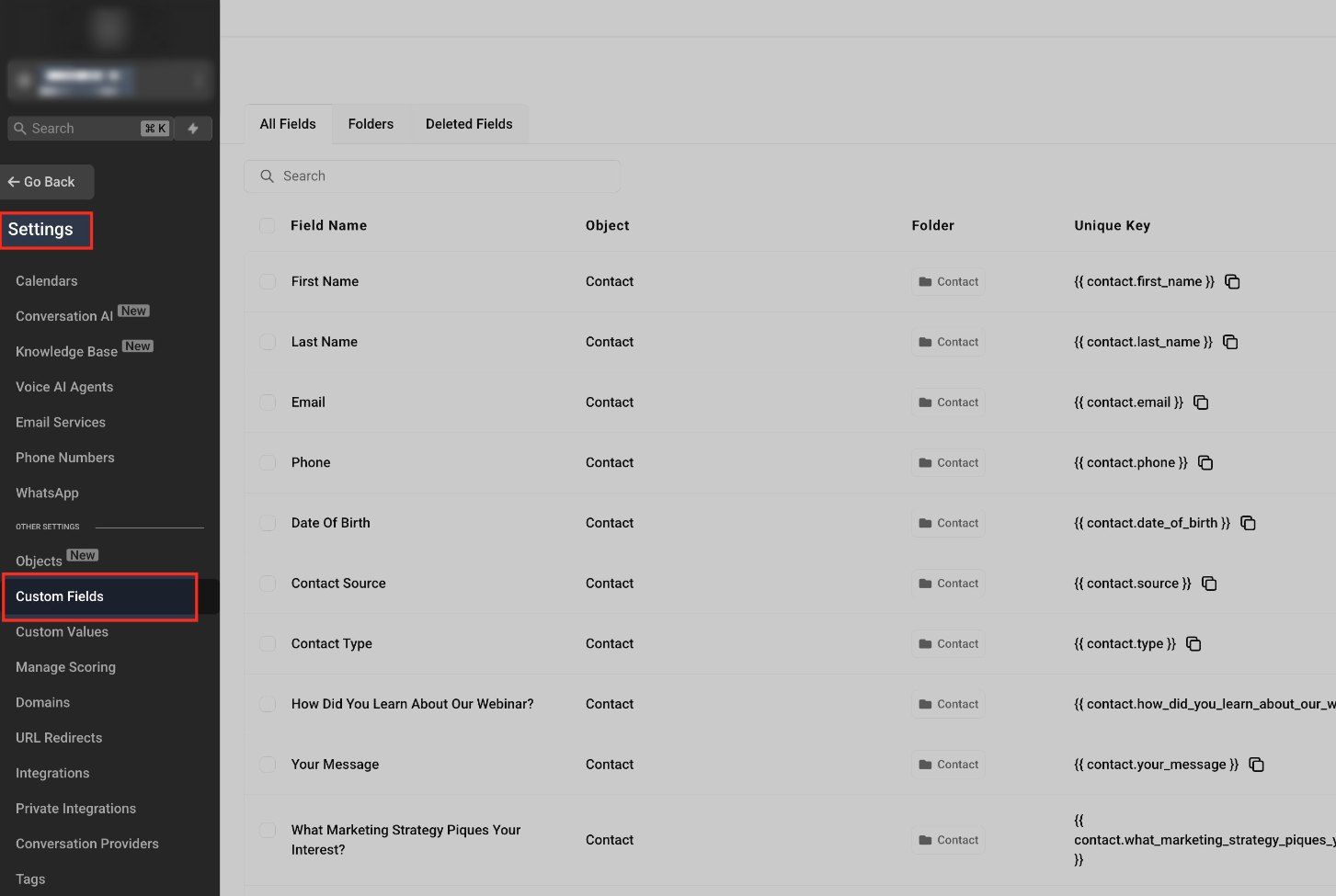
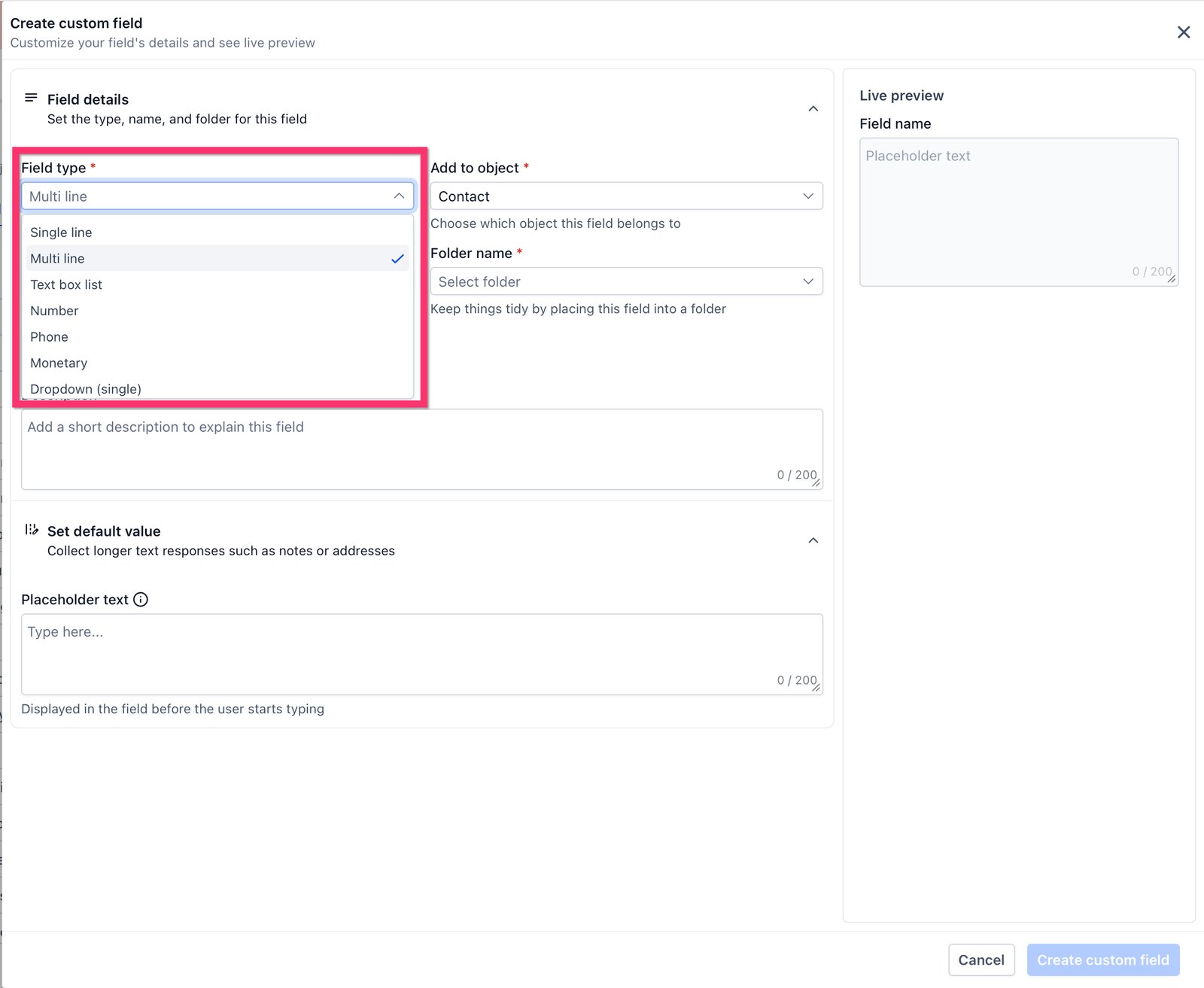
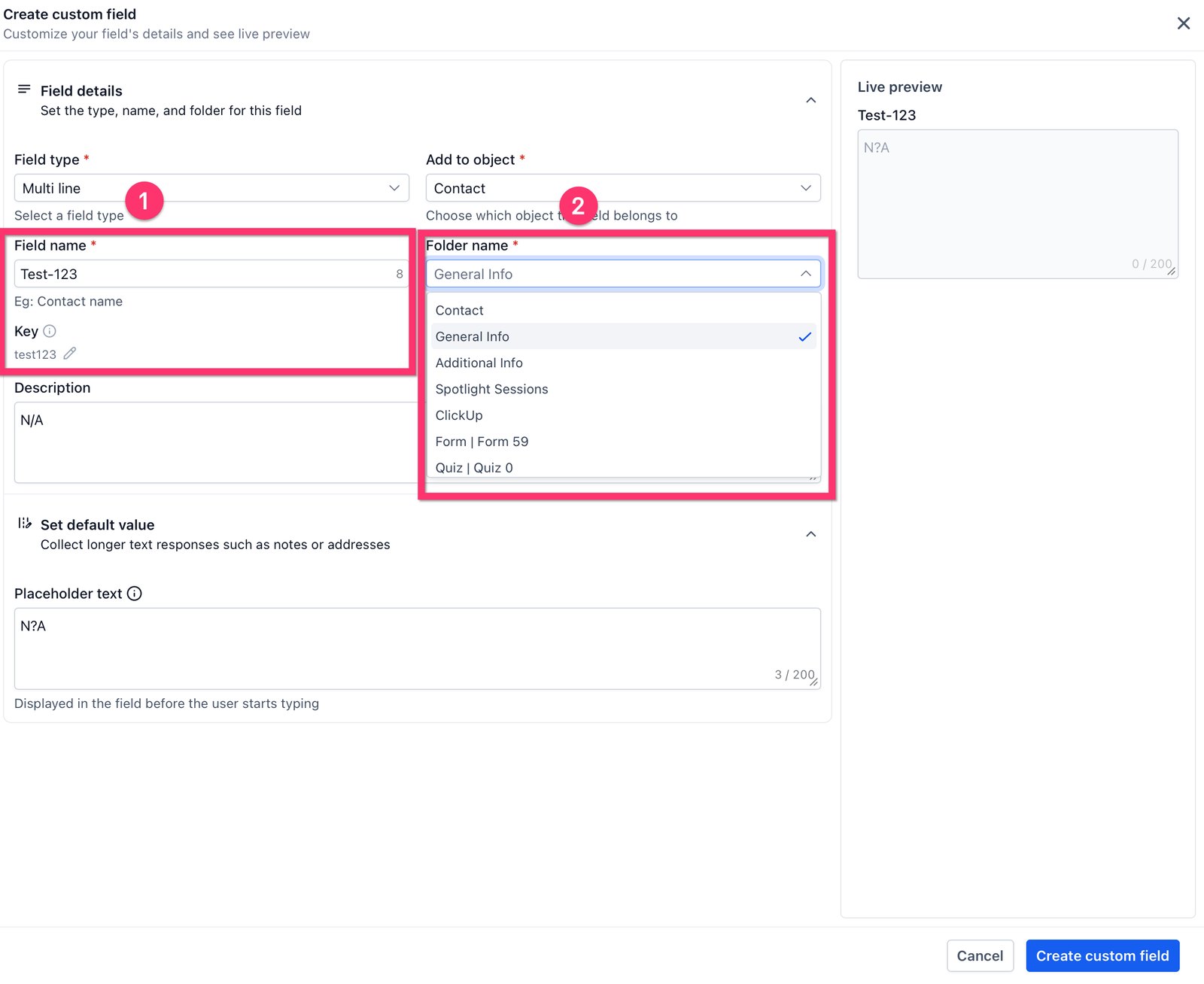
Hi baddie! I'm Hazel. Custom fields hold what this business needs to know. Let's make one. Go to Settings, then Custom Fields. Here's every field in the account. Check the list first, so you don't create a field that already exists. Pick the field type first. It decides what data can go in. If the answers come from a fixed list, use a dropdown, not free text. Name it after the question it answers, like Service area. GHL makes the key from the name. Choose a folder to keep things tidy, then Create custom field. Ask one question every time: will something read this field later? Read the lesson below, then take the quick check.
Hi baddie! Si Hazel 'to. Sa custom fields nakalagay ang kailangang malaman ng business. Gawa tayo ng isa. Go to Settings, then Custom Fields. Nandito ang lahat ng fields ng account. I-check muna ang list, para hindi ka gumawa ng field na meron na. Piliin muna ang field type. Ito ang nagde-decide kung anong data ang pwedeng ilagay. Kung galing sa fixed list ang sagot, dropdown ang gamitin, hindi free text. Pangalanan ito ayon sa tanong na sinasagot niya, tulad ng Service area. Gagawin ng GHL ang key mula sa name. Pumili ng folder para maayos, then Create custom field. Isang tanong lagi: may babasa ba ng field na 'to later? Basahin ang lesson sa baba, tapos sagutan ang quick check.
What you'll learn
- Decide when a piece of information deserves a custom field
- Choose the right field type for the job
- Name fields so the next person understands them
- Avoid duplicating fields GHL already has
- Magdesisyon kung kailan dapat gawan ng custom field ang isang info
- Piliin ang tamang field type para sa trabaho
- Pangalanan ang fields para maintindihan ng susunod na hahawak
- Iwasang i-duplicate ang fields na meron na sa GHL
New words in this lesson
- Custom field
- Extra information a specific business tracks about each contact, like service area or preferred branch. You choose its type (dropdown, date, number…).
- Custom value
- An account-wide value (like the business phone number) stored once and reused in messages and pages, so one edit updates everywhere.
What a client actually asks
"We need to track which service area each lead is in, and whether they're after a quote or an urgent repair."
Ang tanong ng client
"Kailangan naming i-track kung saang service area ang bawat lead, at kung quote ba ang hanap nila o urgent repair."
Key concepts
Standard fields cover what every business needs: name, email, phone, address. Custom fields cover what this business needs. That might be the service area for a plumber, the preferred branch for a clinic, or the move-in date for a real estate lead.
The client at the top of the page needs two: service area and request type (quote or urgent repair). Both will be used later — to route the lead to the right person and to decide how fast to follow up. That’s the test for every custom field:
Will something read this field later? A workflow, a smart list, a report, or a person making a decision. If nothing will, you don’t need the field.
Choosing the field type
The field type decides what data can go in, and that decides what you can do with it later. The most useful types for beginners:
| If the answer is… | Use | Example |
|---|---|---|
| One choice from a fixed list | Dropdown (single) or Radio | Service area: North / Central / South |
| Several choices from a fixed list | Dropdown (multiple) or Checkbox | Services interested in |
| A number you might compare | Number or Monetary | Budget, number of rooms |
| A date | Date picker | Move-in date, last service date |
| A short free answer | Single line | Company name |
| A longer free answer | Multi line | “Describe the problem” |
The rule that saves you: if the answers come from a known list, don’t use free text. A filter for “service area is Cebu” will miss “cebu”, “Cebu City” and “CEBU”. A dropdown makes that impossible.
Naming fields
Name a field after the question it answers, in plain words: Service area, Request type, Preferred branch. Avoid “Info”, “Notes 2” or the client’s internal jargon.
When a field is used in a message, it’s referenced by a key that looks like
{{contact.service_area}}. A clear name gives you a clear key.
Step-by-step build
Here’s how you’d create the two fields from the client request.
Plan on paper first. Write: Service area — dropdown — North, Central, South and Request type — radio — Quote, Urgent repair. Thirty seconds of planning prevents a mess.
Check the standard fields. Make sure neither of these exists already, under any name.
Open the custom fields screen and add a new field. Choose the Dropdown (single) type, name it Service area, and enter the three options exactly as agreed.
Add the second field. Choose Radio (or a single dropdown), name it Request type, and add the two options.
Open a test contact and confirm both fields appear and can be set. If the account groups fields, check they landed in a sensible group.
How you’d check it
Set the fields on your test contact, then look for them in a contact filter or smart list. If you can filter “Service area is North” and find your test contact, the field is doing its job. Lesson 7 builds on this.
Mga pangunahing konsepto
Sinasakop ng standard fields ang kailangan ng bawat business: name, email, phone, address. Ang custom fields naman ay para sa kailangan ng business na ito. Pwedeng service area para sa plumber, gustong branch para sa clinic, o move-in date para sa real estate lead.
Dalawa ang kailangan ng client sa itaas: service area at request type (quote o urgent repair). Pareho silang gagamitin mamaya — para i-route ang lead sa tamang tao at para malaman kung gaano kabilis mag-follow up. ‘Yan ang test para sa bawat custom field:
May babasa ba ng field na ‘to mamaya? Workflow, smart list, report, o taong nagdedesisyon. Kung wala, hindi mo kailangan ang field.
Pagpili ng field type
Ang field type ang nagdedesisyon kung anong data ang pwedeng ilagay, at ‘yon ang nagdedesisyon kung ano ang magagawa mo dito mamaya. Ang pinaka-useful na types para sa beginners:
| Kung ang sagot ay… | Gamitin | Halimbawa |
|---|---|---|
| Isang pili mula sa fixed na listahan | Dropdown (single) o Radio | Service area: North / Central / South |
| Ilang pili mula sa fixed na listahan | Dropdown (multiple) o Checkbox | Services na interesado sila |
| Numerong baka ikumpara mo | Number o Monetary | Budget, dami ng kwarto |
| Petsa | Date picker | Move-in date, huling service date |
| Maikling free answer | Single line | Company name |
| Mas mahabang free answer | Multi line | “Ilarawan ang problema” |
Ang rule na magliligtas sa’yo: kung galing sa kilalang listahan ang sagot, huwag gumamit ng free text. Ang filter na “service area is Cebu” ay hindi makakahuli ng “cebu”, “Cebu City” at “CEBU”. Ang dropdown, imposibleng magkaganyan.
Pagpapangalan ng fields
Ipangalan ang field sa tanong na sinasagot nito, sa simpleng salita: Service area, Request type, Preferred branch. Iwasan ang “Info”, “Notes 2” o ang internal jargon ng client.
Kapag ginamit ang field sa message, tinutukoy ito gamit ang key na ganito ang
itsura: {{contact.service_area}}. Malinaw na pangalan, malinaw na key.
Pag-build, step by step
Ganito mo gagawin ang dalawang field mula sa request ng client.
Magplano muna sa papel. Isulat: Service area — dropdown — North, Central, South at Request type — radio — Quote, Urgent repair. Tatlumpung segundong pagpaplano, iwas-gulo.
I-check ang standard fields. Siguraduhing wala pa ang dalawang ‘to, kahit sa ibang pangalan.
Buksan ang custom fields screen at magdagdag ng bagong field. Piliin ang type na Dropdown (single), pangalanan itong Service area, at ilagay ang tatlong options nang eksakto sa napagkasunduan.
Idagdag ang pangalawang field. Piliin ang Radio (o single dropdown), pangalanan itong Request type, at idagdag ang dalawang options.
Magbukas ng test contact at kumpirmahing lumalabas at nase-set ang dalawang field. Kung naka-grupo ang fields sa account, i-check kung napunta sila sa tamang grupo.
Paano mo ito iche-check
I-set ang fields sa test contact mo, tapos hanapin sila sa contact filter o smart list. Kung kaya mong i-filter ang “Service area is North” at makita ang test contact mo, ginagawa ng field ang trabaho niya. Dito magbu-build ang Lesson 7.
Common mistakes
- Gumagamit ng free-text field para sa may fixed na sagot
- Kung galing sa kilalang listahan ang sagot (service area, branch, plan type), gumamit ng dropdown o radio field. Sa free text, makakakuha ka ng "Cebu", "cebu city" at "CEBU" — at workflow filter na walang mama-match kahit isa.
- Gumagawa ng custom field na kapareho ng standard field
- May fields na ang GHL para sa name, email, phone, address at iba pa. I-check muna ang standard fields bago ka magdagdag ng "Client Email".
- Malabong pangalan ng field gaya ng "Info" o "Field 2"
- Ipangalan ang field sa tanong na sinasagot nito — "Service area", "Urgency". Pagkalipas ng anim na buwan, magpapasalamat ka (o ang susunod na VA).
- Gumagawa ng fields habang nagbu-build ng form
- Idisenyo muna ang field set sa papel. Ang fields na ginagawa nang biglaan ang dahilan kung bakit nagkakaroon ang accounts ng tatlong version ng iisang bagay.
- Using a free-text field for something with fixed answers
- If the answers come from a known list (service area, branch, plan type), use a dropdown or radio field. Free text gives you "Cebu", "cebu city" and "CEBU" — and a workflow filter that matches none of them.
- Creating a custom field that duplicates a standard one
- GHL already has fields for name, email, phone, address and more. Check the standard fields before you add "Client Email".
- Vague field names like "Info" or "Field 2"
- Name a field after the question it answers — "Service area", "Urgency". Six months later, you (or the next VA) will thank you.
- Creating fields on the fly while building a form
- Design the field set first, on paper. Fields created reactively are how accounts end up with three versions of the same thing.
Practice
🔒 Practice opens once you've completed every lesson in Learn.
Want to follow along in a real account? You need GHL access — get a free 30-day trial + free live training (affiliate link). Gusto mo bang sumabay sa totoong account? Kailangan mo ng GHL access — kumuha ng libreng 30-day trial + libreng live training (affiliate link).
Knowledge check
5 quick questions. You'll see why each answer is right or wrong as you go, and you can retake it as often as you like.