Module 7 · Lesson 2 of 4
Your Conversations Inbox Ang Conversations Inbox Mo
Awaiting hands-on verification. The concepts here are sound, but the click-by-click steps have not yet been re-walked in a live GoHighLevel sub-account. GoHighLevel changes often, so a menu name or screen may differ from what you see. Flagged rather than presented as verified.
Before this: Email vs SMS: Choosing Correctly
Your knowledge-check score on Email vs SMS: Choosing Correctly was under 60%. Worth a quick re-read before this one — it builds on it.
On this page

In this lesson
Your Conversations Inbox
Sa lesson na ’to
Ang Conversations Inbox Mo

Read the transcript
Hi baddie! I'm Hazel. Today we're cleaning up your inbox. In GHL, every text, email and chat from your clients lands in one place: Conversations. Let's tour it. On the left, your chat list. In the middle, the full conversation. On the right, the contact's details. One screen, everything you need. To reply, pick your channel down here: SMS, Email or WhatsApp. Type your message, then hit Send. Just for your team? Choose Internal Comment. The client won't see it, promise. Too many messages? Click this filter icon. Filter by tag or by channel. Instantly tidy. This star? Use it for messages you need to come back to. They'll wait for you in the Starred tab. Select a few chats and mark them read, unread, or star them all at once. But be careful with Delete. There's no undo. Last, my favorite: snippets. Go to the Snippets tab and click New Snippet. Save the answers you type every day, like your address or your prices. Next time, it's just one click. Your turn! Do the practice task and tick your checklist. See you in the next lesson. You've got this, baddie!
Hi baddie! Si Hazel 'to. Today, lilinisin natin ang inbox mo. In GHL, every text, email and chat from your clients lands in one place: Conversations. Let's tour it. On the left, your chat list. In the middle, the full conversation. On the right, the contact's details. Isang screen lang, kumpleto na. To reply, pick your channel down here: SMS, Email or WhatsApp. Type, then hit Send. Kung para sa team mo lang, choose Internal Comment. Hindi yan makikita ng client, promise. Too many messages? Click this filter icon. Filter by tag or by channel. Instant linis. This star? Use it for messages na kailangan mong balikan. They'll wait for you in the Starred tab. Select a few chats and you can mark them read, unread, or star them all at once. Pero ingat sa Delete, wala nang undo yan. Last, my favorite: snippets. Go to the Snippets tab, click New Snippet, and save the answers you type every day, like your address or your prices. Next time, one click lang. Your turn! Do the practice task, tick your checklist, and see you in the next lesson. You've got this, baddie!
What you'll learn
- Find the Conversations inbox and know what each part of the screen does
- Reply to a client by text or email from one place
- Use filters, stars and bulk actions so you don't drown in messages
- Save a snippet so you never retype the same answer again
- Hanapin ang Conversations inbox at alamin ang ginagawa ng bawat parte ng screen
- Mag-reply sa client by text o email mula sa iisang lugar
- Gamitin ang filters, stars at bulk actions para hindi ka malunod sa messages
- Mag-save ng snippet para hindi mo na kailangang i-retype ang parehong sagot
What a client actually asks
"Clients text me, email me and message me on Facebook, all at the same time. I keep missing messages because they're spread across five apps."
Ang tanong ng client
"Tine-text ako, ine-email ako at minemessage ako sa Facebook ng clients ko, lahat sabay-sabay. Lagi akong may nakakaligtaang message kasi nasa limang apps sila."
Why this matters
Imagine you run a salon. Clients text you, email you and message you on Facebook, all at the same time. If those messages live in five different apps, you will miss one. Conversations puts every message from every channel in one inbox, so no client is ever left on “seen”.
Words to know
- Conversations: GHL’s inbox. All texts, emails, calls and chats with your contacts show up here.
- Channel: the way a message is sent, like SMS (text), Email, WhatsApp or Facebook.
- Composer: the typing box at the bottom where you write your reply.
- Internal comment: a private note for your team. The client can’t see it.
- Snippet: a saved message you can drop into a reply with one click.
Step-by-step walkthrough
This all happens inside a sub-account (your client’s account), not at the agency level.
Part A: Tour the inbox
- In the left menu, click Conversations.
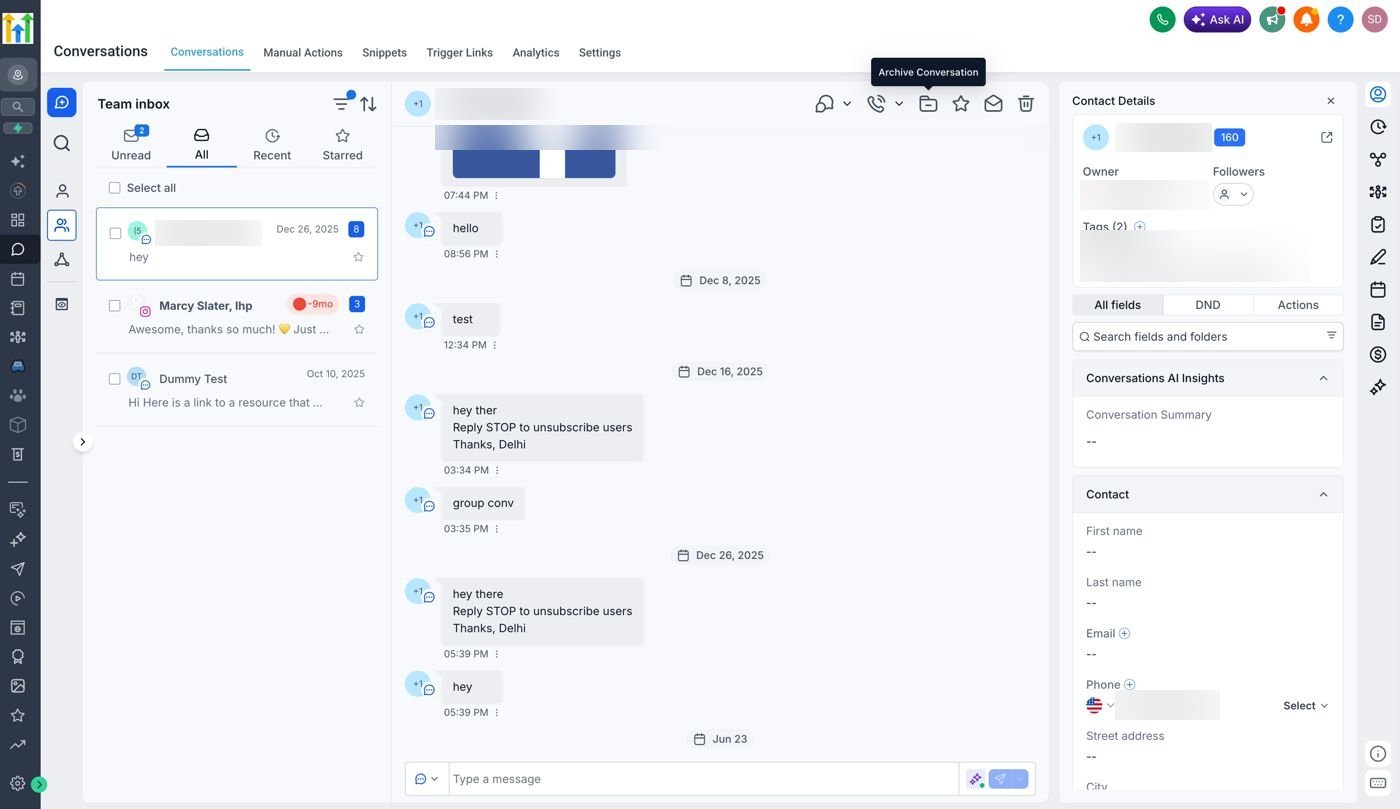
- Look at the screen from left to right. Here’s how it’s laid out:
- Inbox tabs (top left): Unread, All, Recent(s) and Starred.
- Chat list (left column): all your conversations. Click one to open it.
- Message history (middle): the whole back-and-forth with that contact. Your typing box is at the bottom.
- Contact details (right side): the contact’s info, tags, owner and more, so you don’t have to switch pages.
Part B: Reply to a client
- Click a conversation in the chat list.
- At the bottom, pick your channel: SMS, Email or WhatsApp (only the channels connected to your account will show).
- Type your message in the composer.
- Click Send. Shortcut: Ctrl + Enter on Windows, Cmd + Enter on Mac.
- Need to tell your team something? Choose Internal Comment instead. Your team sees it, the client does not.
Part C: Stay organized
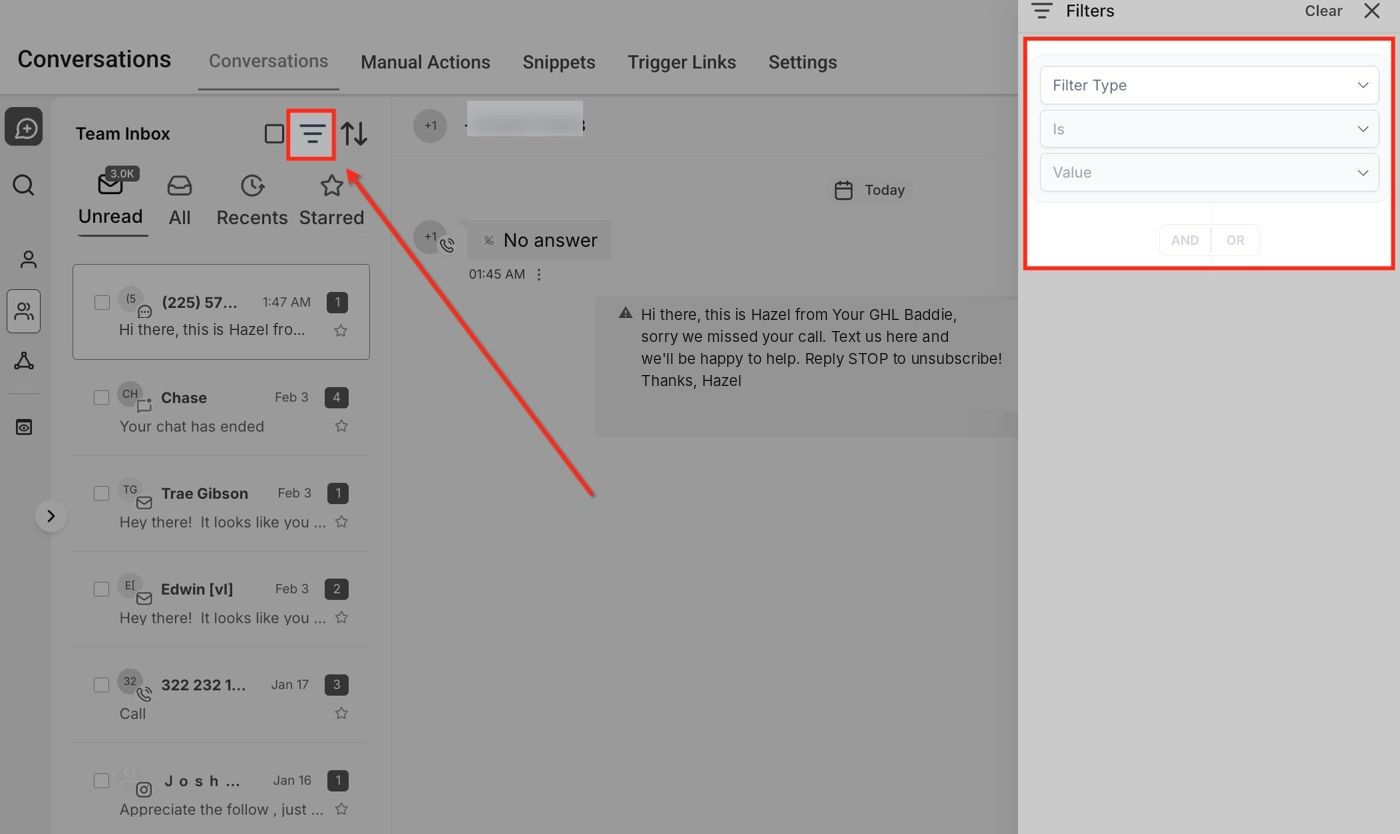
- Filter: click the filter icon (three lines) at the top of the chat list. Choose a filter type, like Tag or Last Message Channel, then pick a value.
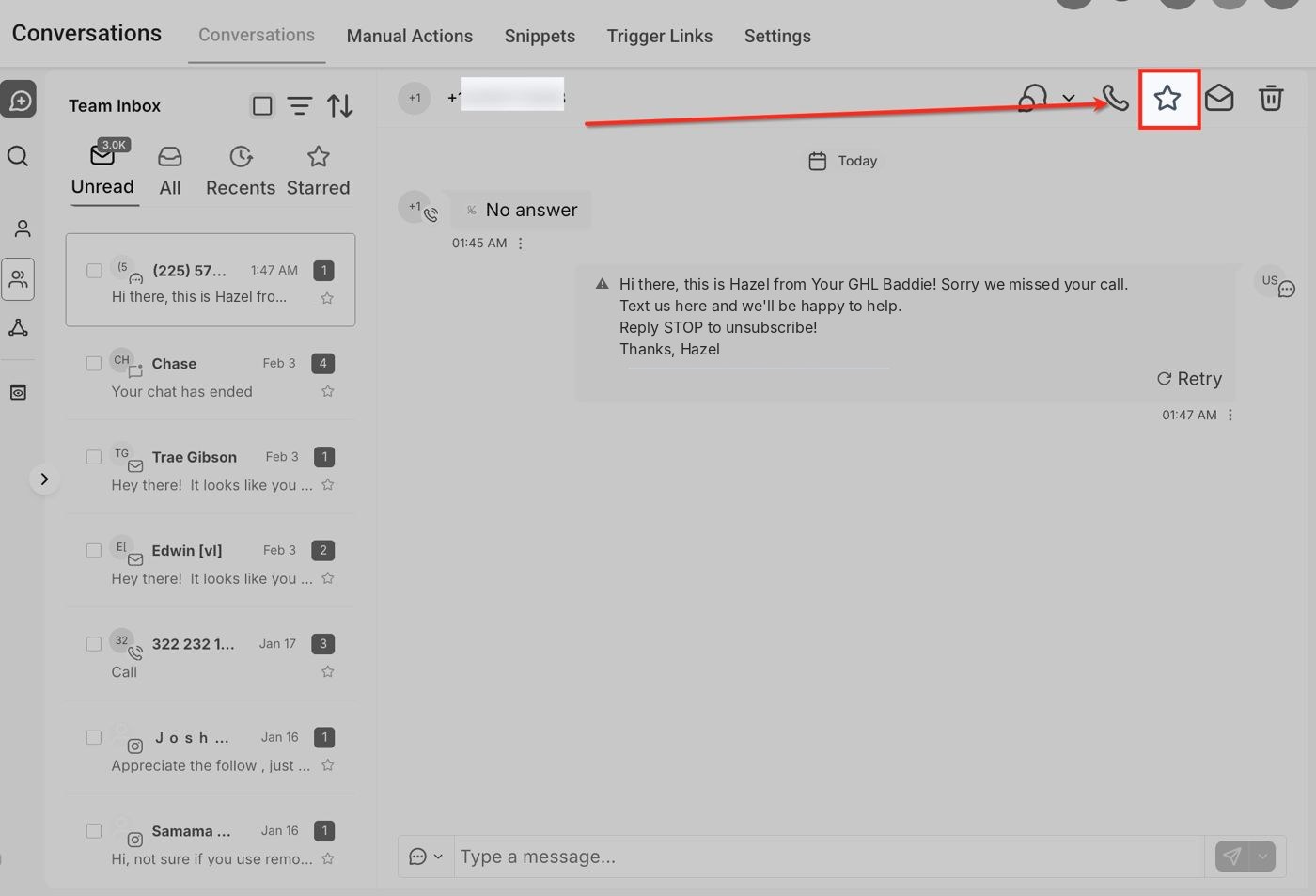
- Star: open a conversation and click the star at the top right. Starred chats show up in the Starred tab. Perfect for “I’ll come back to this” messages.
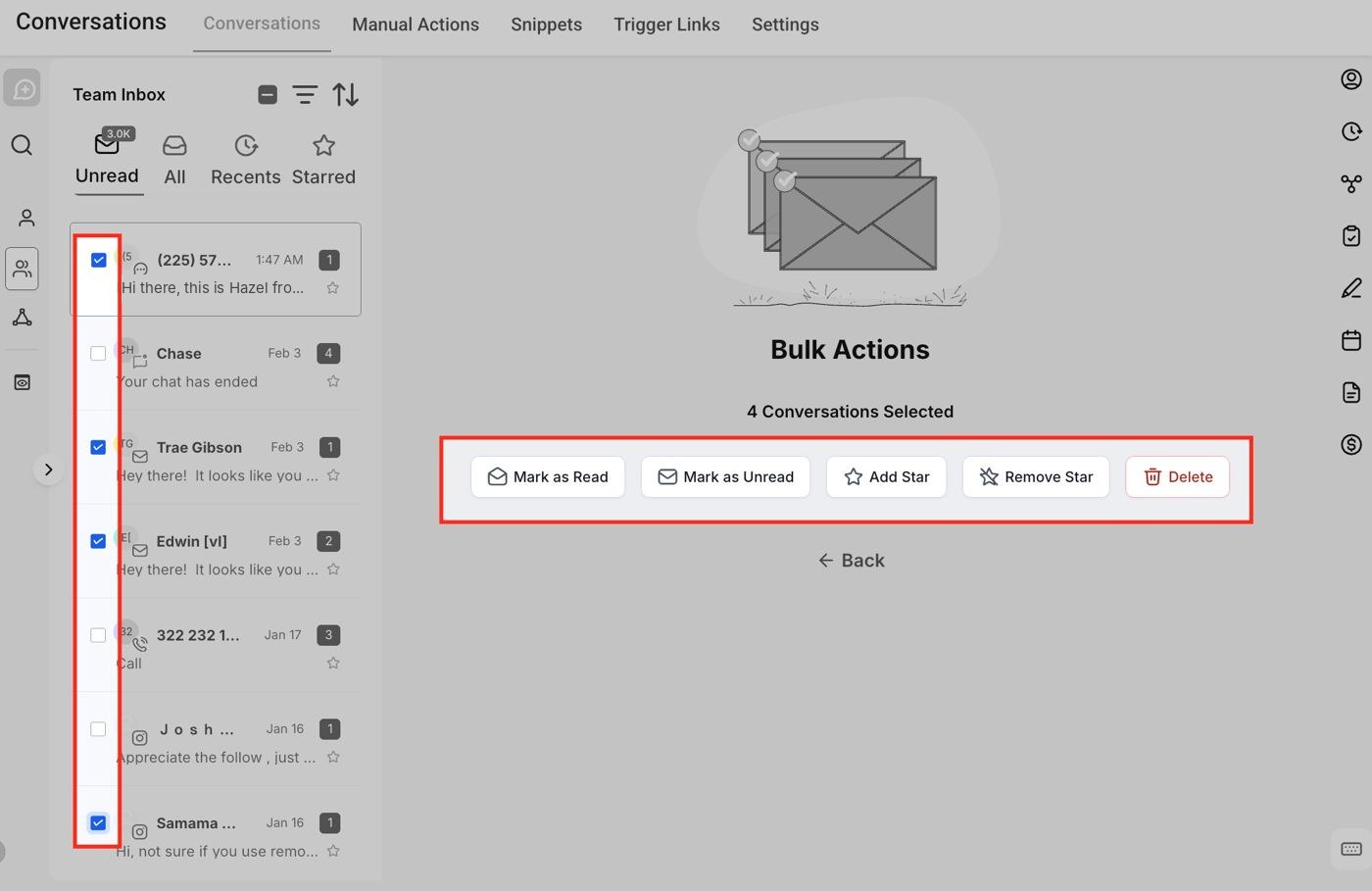
- Bulk actions: tick the boxes beside several chats. You can Mark as Read, Mark as Unread, Add Star, Remove Star or Delete. Be careful: Delete cannot be undone.
Part D: Save time with snippets
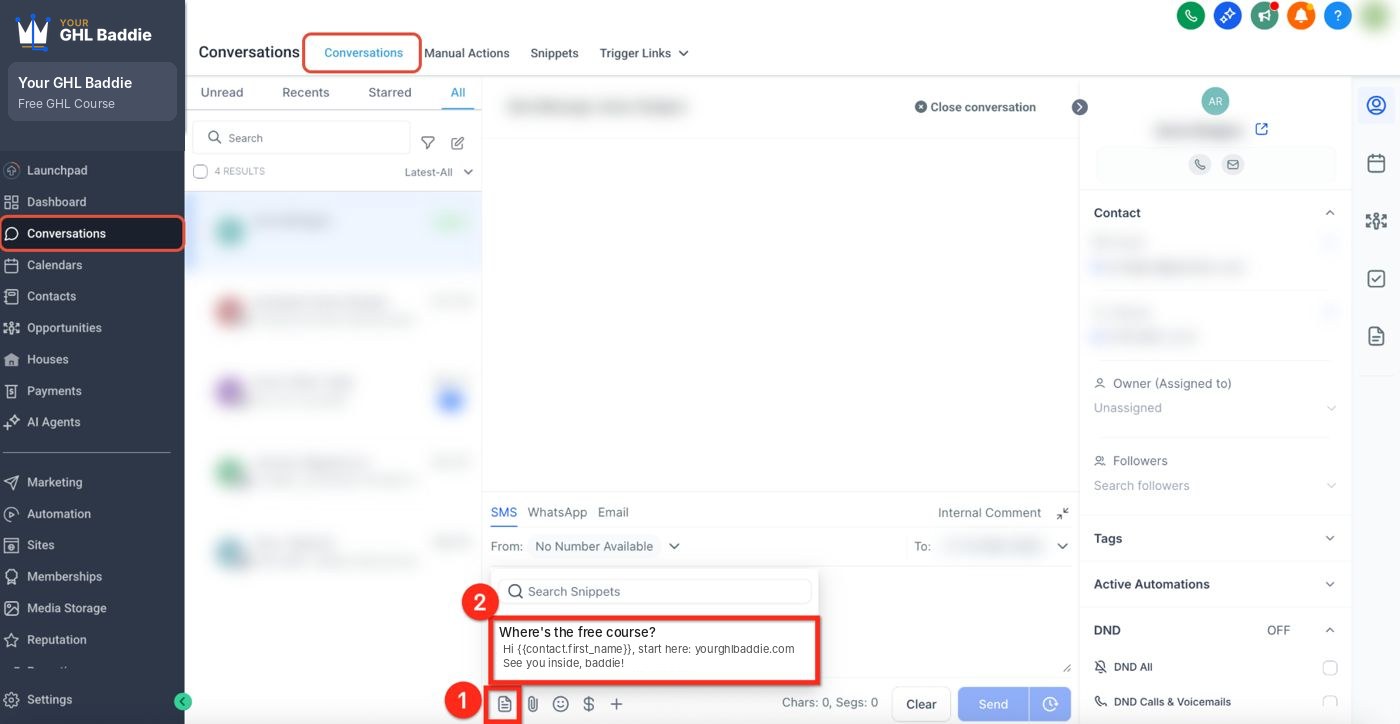
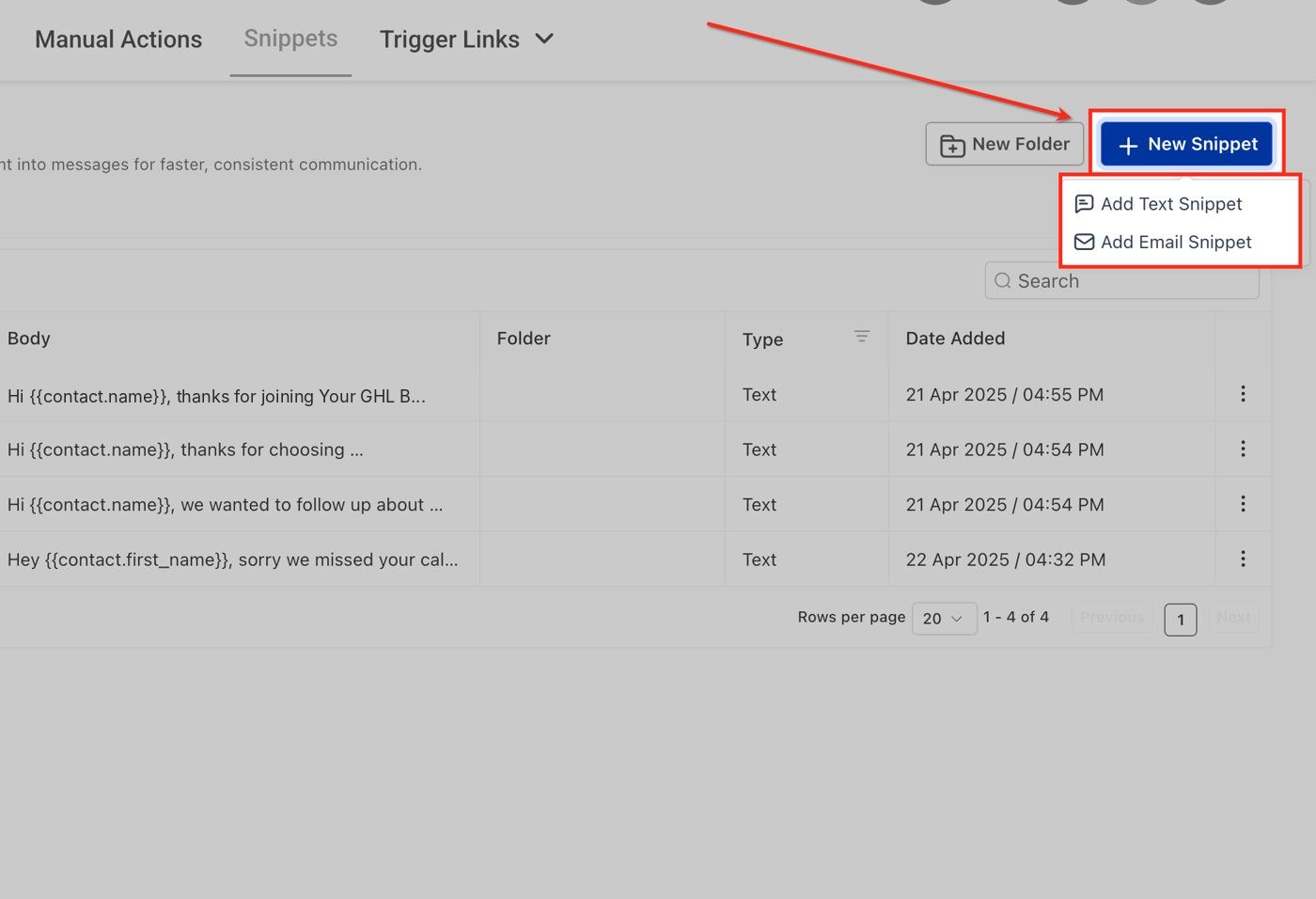
- At the top of Conversations, click the Snippets tab.
- Click New Snippet, then Add Text Snippet (or Add Email Snippet).
- Give it a clear name, like “Salon location”, type the message, and save.
- In any chat, click the snippet icon in the composer, pick your snippet, check it, and send.
Practice task
In the practice sub-account:
- Create a test contact using your own phone number or email.
- Send yourself a message from Conversations.
- Star the conversation.
- Add an Internal Comment that says “Just practicing!”
- Create a text snippet for your salon hours and use it in a reply.
I did it! checklist
Bakit ito mahalaga
Imagine you run a salon. Clients text you, email you, and message you on Facebook, lahat sabay-sabay. Kung nasa limang apps yan, may makakalimutan ka talaga. Conversations puts every message from every channel in one inbox, so walang client na maiiwang naka-seen lang.
Mga salitang dapat alam mo
- Conversations: ang inbox ng GHL. Dito lumalabas lahat ng texts, emails, calls at chats with your contacts.
- Channel: ang paraan ng pagpapadala ng message, like SMS (text), Email, WhatsApp o Facebook.
- Composer: ang typing box sa baba kung saan mo isinusulat ang reply mo.
- Internal comment: private note para sa team mo. Hindi ito makikita ng client.
- Snippet: saved message na pwede mong ilagay sa reply with one click.
Gabay, step by step
Lahat ng ito ay ginagawa inside a sub-account (ang account ng client mo), hindi sa agency level.
Part A: Silipin ang inbox
- Sa left menu, click Conversations.
- Tingnan ang screen from left to right. Ganito siya hinati:
- Inbox tabs (top left): Unread, All, Recent(s) at Starred.
- Chat list (left column): lahat ng conversations mo. I-click ang isa para buksan.
- Message history (gitna): ang buong usapan with that contact. Nasa baba ang typing box mo.
- Contact details (right side): info, tags, owner at iba pa ng contact, para hindi mo na kailangang lumipat ng page.
Part B: Mag-reply sa client
- I-click ang isang conversation sa chat list.
- Sa baba, piliin ang channel mo: SMS, Email o WhatsApp (lalabas lang ang channels na naka-connect sa account mo).
- I-type ang message mo sa composer.
- Click Send. Shortcut: Ctrl + Enter sa Windows, Cmd + Enter sa Mac.
- May sasabihin ka sa team mo? Piliin ang Internal Comment. Makikita ito ng team mo, hindi ng client.
Part C: Manatiling organized
- Filter: i-click ang filter icon (three lines) sa taas ng chat list. Pumili ng filter type, like Tag o Last Message Channel, tapos pumili ng value.
- Star: buksan ang conversation at i-click ang star sa top right. Lalabas ang starred chats sa Starred tab. Perfect for “babalikan ko ‘to” messages.
- Bulk actions: i-tick ang boxes sa tabi ng ilang chats. Pwede kang mag-Mark as Read, Mark as Unread, Add Star, Remove Star o Delete. Careful ha, walang undo ang Delete.
Part D: Makatipid ng oras gamit ang snippets
- Sa taas ng Conversations, i-click ang Snippets tab.
- Click New Snippet, tapos Add Text Snippet (o Add Email Snippet).
- Bigyan ito ng malinaw na pangalan, like “Salon location”, i-type ang message, at i-save.
- Sa kahit anong chat, i-click ang snippet icon sa composer, piliin ang snippet mo, i-check, at i-send.
Practice task mo
Sa practice sub-account:
- Gumawa ng test contact gamit ang sarili mong phone number o email.
- Padalhan ang sarili mo ng message mula sa Conversations.
- I-star ang conversation.
- Magdagdag ng Internal Comment na “Practice lang ‘to!”
- Gumawa ng text snippet para sa salon hours mo at gamitin ito sa isang reply.
Checklist: Nagawa ko!
Common mistakes
- Nagba-bulk delete ng conversations para "linisin" ang inbox
- Walang undo ang Delete. Para maglinis, gamitin ang Mark as Read, o i-star ang mga chat na kailangan mong balikan.
- Nagta-type ng note para sa team sa SMS o Email tab
- Lahat ng ipinadala sa SMS o Email ay mapupunta sa client. Sa Internal Comment ang notes para sa team, hindi ito makikita ng client.
- Paulit-ulit na tina-type ang parehong sagot
- Kung tatlong beses mo na siyang na-type, i-save mo na as snippet. One click na lang next time, at walang typo.
- Bulk deleting conversations to "clean up" the inbox
- Delete cannot be undone. To tidy up, use Mark as Read, or star the chats you need to come back to.
- Typing a note for your team in the SMS or Email tab
- Anything sent on SMS or Email goes to the client. Team notes go in Internal Comment, which the client never sees.
- Typing the same answer over and over
- If you've typed it three times, save it as a snippet. One click next time, and no typos.
Want to follow along in a real account? You need GHL access — get a free 30-day trial + free live training (affiliate link). Gusto mo bang sumabay sa totoong account? Kailangan mo ng GHL access — kumuha ng libreng 30-day trial + libreng live training (affiliate link).
Knowledge check
5 quick questions. You'll see why each answer is right or wrong as you go, and you can retake it as often as you like.